Disable networking and clipboard sharing in Windows Sandbox
What to do first
Disable networking and clipboard sharing in Windows Sandbox. Windows Sandbox enables networking and clipboard sharing by default, creating unnecessary paths between untrusted code and other resources. Record the current state before changing it, use only the supported Windows path described below, and verify the same operation again after any required restart.
This is a general troubleshooting guide, not an announcement of a current outage.
Affected products and symptoms
- Product
- Windows Sandbox
- Versions and conditions
- Windows 11 (confirm the edition and hardware requirements for the feature)
- Error codes and identifiers
- WSB
Symptoms
- Disable networking and clipboard sharing in Windows Sandbox.
- The same condition can persist after a retry or restart.
Causes and conditions
Windows Sandbox enables networking and clipboard sharing by default, creating unnecessary paths between untrusted code and other resources.
Before you start
- Save open documents and allow time for a Windows restart if required.
- Run administrative actions only on a personally managed PC or with administrator approval.
- Save the diagnostic command output so the before and after states can be compared.
Precautions
- Do not bulk-delete registry entries, system folders, credentials, or storage metadata.
- Do not run unofficial scripts or unknown drivers with administrator rights.
Tools and official pages used in this guide
Check the official requirements, interface names, and limitations for this step.
Step-by-step instructions
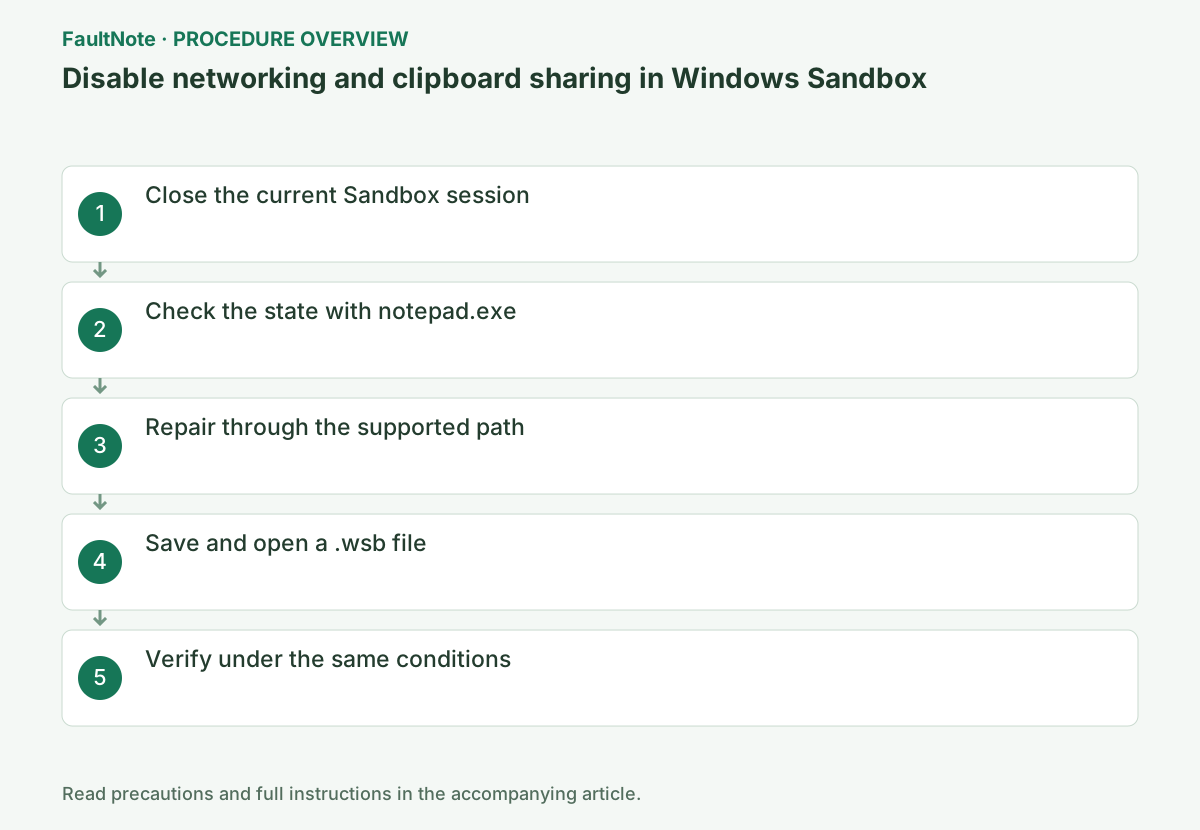
Review any output you need, then close the current Sandbox. A configuration file cannot be applied to an already-running session. Start with harmless test data and do not share confidential files or a working business environment.
Save the configuration as XML and verify that the actual filename ends in .wsb. Correct a .wsb.txt extension. Test by opening that configuration file rather than launching the ordinary Start menu shortcut.
Turn on file-name extensions and prepare an empty folder for the configuration file.
notepad.exeCreate a .wsb file containing a Configuration root element with Networking and ClipboardRedirection set to Disable, save it, and launch that file.
This XML is configuration content, not a terminal command. Paste it into Notepad and use Save As with file type All files, name secure-sandbox.wsb, and UTF-8 encoding.
Official links for this step
- Use and configure Windows Sandbox
Check the official requirements, interface names, and limitations for this step.
- Use and configure Windows Sandbox
The XML in step 3 is configuration text to paste into Notepad, not a terminal command. Choose Save as, set the file type to All files, and save it as isolated.wsb. Show file extensions in File Explorer, confirm it is not .wsb.txt, and double-click the file.
Copy harmless text on the host and verify that it cannot be pasted into Sandbox. Also check that an external web page cannot be reached. These restrictions affect file retrieval; if required, design a dedicated mapped folder using the documented read-only option rather than sharing the entire host.
In the newly opened Sandbox, confirm that the browser cannot connect to an external site. Copy a harmless short string on the host and confirm that it cannot be pasted into Notepad in Sandbox. ipconfig output alone does not verify that clipboard redirection is disabled.
Check the result
- Clipboard paste and external connectivity are blocked in the session launched from the intended .wsb
- The verification command reports the expected enabled, healthy, or connected state.
- The result remains correct after a Windows restart and no new matching critical event appears.
If the problem continues
- For an XML error, retain a copy and restore options one at a time from a minimal configuration
- If hardware requirements, organization policy, or server settings are responsible, ask the owner to make the change instead of bypassing it on the client.
Scope of this guide
Troubleshooting guide — Restore the feature so it starts, connects, or completes normally and passes the same verification after a Windows restart.
Frequently asked questions
Do files remain after closing Sandbox?
No. Installed software, files, and state are discarded when Sandbox closes. Decide how to handle samples and results beforehand.
Does disabling networking make it completely safe?
No. It reduces exposure but does not guarantee safety. Avoid writable host-folder mappings and do not test on a sensitive host.
Official sources and dates
Source publication or resolution date: Not specified. Sources checked: 2026-10-13. The check date is not the date the problem first occurred. Interface labels can vary between versions and display languages.
Related troubleshooting guides
Windows errors and troubleshooting →
- WSL 2 or Hyper-V cannot run inside a Hyper-V virtual machine
- Hyper-V is missing from Windows Features or cannot be enabled
- Laptop is slow only on battery: check the power mode, energy saver and the maker's cooling mode in that order
- A driver can't load on this device: what memory integrity is blocking, and the choices that leaves