Hyper-V is missing from Windows Features or cannot be enabled
What to do first
Hyper-V is missing from Windows Features or cannot be enabled. The PC may run Home edition, lack a SLAT-capable CPU, have firmware virtualization disabled, or have hypervisor launch disabled in boot configuration. Record the current state before changing it, use only the supported Windows path described below, and verify the same operation again after any required restart.
This is a general troubleshooting guide, not an announcement of a current outage.
Affected products and symptoms
- Product
- Hyper-V
- Versions and conditions
- Windows 11 (confirm the edition and hardware requirements for the feature)
- Error codes and identifiers
- Hyper-V
Symptoms
- Hyper-V is missing from Windows Features or cannot be enabled.
- The same condition can persist after a retry or restart.
Causes and conditions
The PC may run Home edition, lack a SLAT-capable CPU, have firmware virtualization disabled, or have hypervisor launch disabled in boot configuration.
Before you start
- Save open documents and allow time for a Windows restart if required.
- Run administrative actions only on a personally managed PC or with administrator approval.
- Save the diagnostic command output so the before and after states can be compared.
Precautions
- Do not bulk-delete registry entries, system folders, credentials, or storage metadata.
- Do not run unofficial scripts or unknown drivers with administrator rights.
Tools and official pages used in this guide
Check the official requirements, interface names, and limitations for this step.
Step-by-step instructions
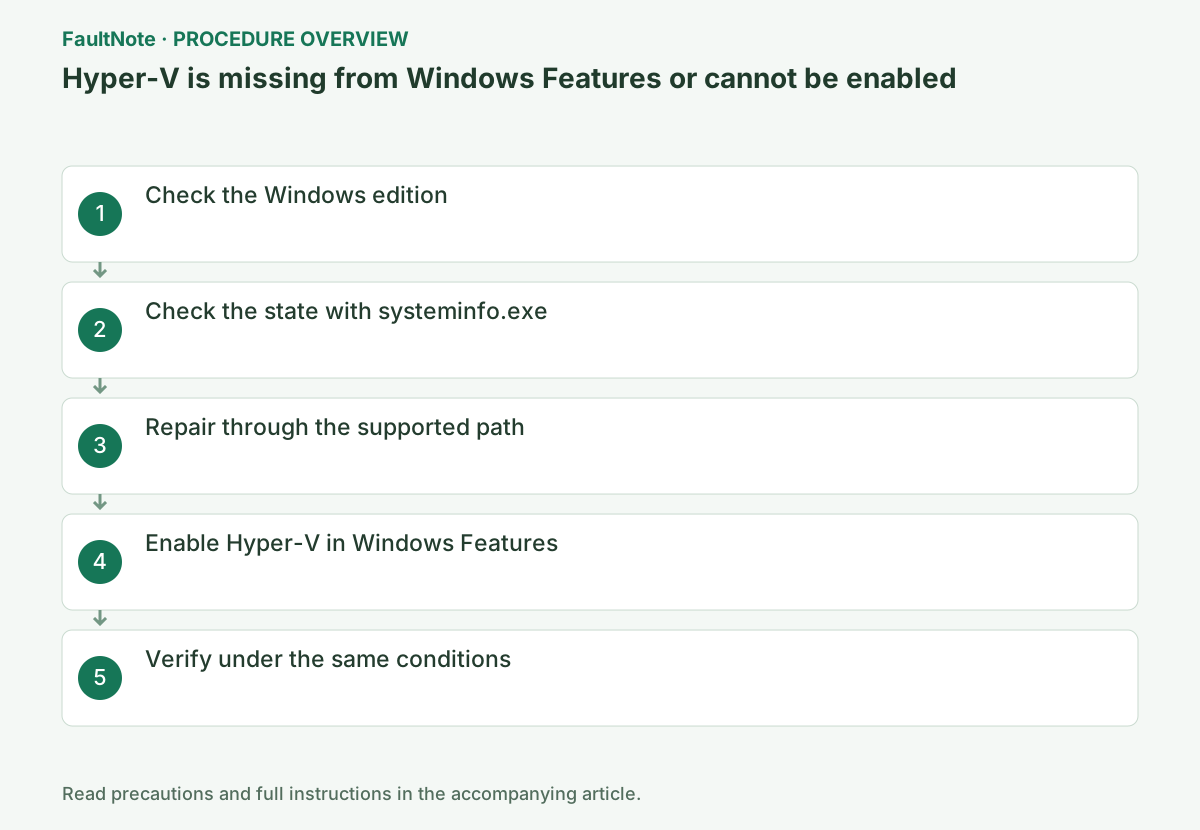
Open Settings > System > About and read Windows specifications. A missing Hyper-V role on Home is expected. Supported editions also require CPU SLAT support and firmware virtualization.
Run winver and compare edition/build with Settings > System > About > Windows specifications. If Hyper-V management is absent on Home, treat it as an edition requirement before troubleshooting it as damage.
Identify one objective: local VM execution, remote VM management or WSL 2. Their required components differ. Record edition, CPU, physical versus virtual environment and actual feature names. A similarly named hypervisor feature does not prove full Hyper-V availability. Distinguish an absent option, an unavailable checkbox and a failed installation.
Record the edition under Settings > System > About. Working management tools do not prove that the PC can run virtual machines. Hyper-V platform components and management tools have different requirements, so identify which capability you need first.
Check the Windows edition and all four Hyper-V Requirements entries.
Read each Hyper-V Requirements item and virtualization state. If any requirement is No or disabled, check the PC maker's model-specific UEFI requirements before retrying Windows feature installation.
For a No requirement, distinguish CPU capability from a firmware setting. Only some deficiencies can be changed through configuration. A VM depends on host exposure of CPU extensions; do not search for physical firmware controls solely inside the guest. Management-only needs differ from platform requirements, so use the role-specific official requirements.
systeminfo.exeOn a supported Pro or Enterprise edition, enable firmware virtualization through the PC maker's model-specific procedure, select Hyper-V in Windows Features, and restart.
Install only after requirements are met and record completion and restart requests. Missing privileges, organizational policy and feature-processing errors are different branches. Avoid unofficial scripts forcing unsupported editions. Compare current requirements and Windows build rather than treating a mismatch with an old screenshot as a fault.
Official links for this step
- System requirements for Hyper-V on Windows and Windows Server
Check the official requirements, interface names, and limitations for this step.
- System requirements for Hyper-V on Windows and Windows Server
Search Start for Turn Windows features on or off and expand Hyper-V. Check whether Hyper-V Platform, as well as the management tools, is selectable. If it is greyed out, inspect the requirement shown. Enable it only on a supported system, then restart.
Investigate a requirement explicitly reported as No. If a hypervisor is already detected, do not change firmware merely because requirement rows are absent. When features are enabled but a VM fails to start, record its name and launch error as a separate runtime problem.
Run Get-WindowsOptionalFeature -Online -FeatureName Microsoft-Hyper-V-All and repeat the original operation once under the same conditions. If it succeeds, verify again after a restart and record the setting that changed.
State=Enabled confirms the feature is active; Disabled means it is off. If enablement or a restart is pending, restart Windows and rerun the same check.
Verify the actual objective. Use an approved small test VM for local execution, the intended distribution for WSL, or the intended server for remote management. Record tool startup, host connection and VM execution separately. Report remaining unmet requirements and stop repeated installation attempts.
Get-WindowsOptionalFeature -Online -FeatureName Microsoft-Hyper-V-All
Check the result
- Required platform components are enabled and a test VM starts
- The verification command reports the expected enabled, healthy, or connected state.
- The result remains correct after a Windows restart and no new matching critical event appears.
If the problem continues
- For an unsupported edition, consider a supported OS or another approved virtualization product
- If hardware requirements, organization policy, or server settings are responsible, ask the owner to make the change instead of bypassing it on the client.
Scope of this guide
Troubleshooting guide — Restore the feature so it starts, connects, or completes normally and passes the same verification after a Windows restart.
Frequently asked questions
Can Hyper-V run on Windows Home?
The Hyper-V role requires a supported Pro or Enterprise edition. A missing feature entry on Home is expected.
Why does systeminfo say a hypervisor was detected?
That message means a hypervisor is already running; individual requirement lines can be omitted, so also check feature state.
Does opening Hyper-V Manager prove virtualization requirements are met?
Management tools and local hypervisor execution have different requirements. For local execution, verify platform components and VM startup; for remote management, inspect the destination separately.
Official sources and dates
Source publication or resolution date: Not specified. Sources checked: 2026-10-13. The check date is not the date the problem first occurred. Interface labels can vary between versions and display languages.
Related troubleshooting guides
Windows errors and troubleshooting →
- Windows Sandbox is missing or cannot start
- WSL 2 error 0x80370102 prevents a distribution from starting
- WSL 2 or Hyper-V cannot run inside a Hyper-V virtual machine
- PC will not boot after a CPU swap: check ASUS CPU support and required BIOS