An SMB share repeatedly asks for credentials or returns access denied
What to do first
An SMB share repeatedly asks for credentials or returns access denied. Saved credentials, an existing SMB session, or a mismatched username format may conflict. Record the current state before changing it, use only the supported Windows path described below, and verify the same operation again after any required restart.
This is a general troubleshooting guide, not an announcement of a current outage.
Affected products and symptoms
- Product
- Windows SMB client
- Versions and conditions
- Windows 11 (confirm the edition and hardware requirements for the feature)
- Error codes and identifiers
- 0x80070035
Symptoms
- An SMB share repeatedly asks for credentials or returns access denied.
- The same condition can persist after a retry or restart.
Causes and conditions
Saved credentials, an existing SMB session, or a mismatched username format may conflict.
Before you start
- Save open documents and allow time for a Windows restart if required.
- Run administrative actions only on a personally managed PC or with administrator approval.
- Save the diagnostic command output so the before and after states can be compared.
Precautions
- Do not bulk-delete registry entries, system folders, credentials, or storage metadata.
- Do not run unofficial scripts or unknown drivers with administrator rights.
Tools and official pages used in this guide
Check the official requirements, interface names, and limitations for this step.
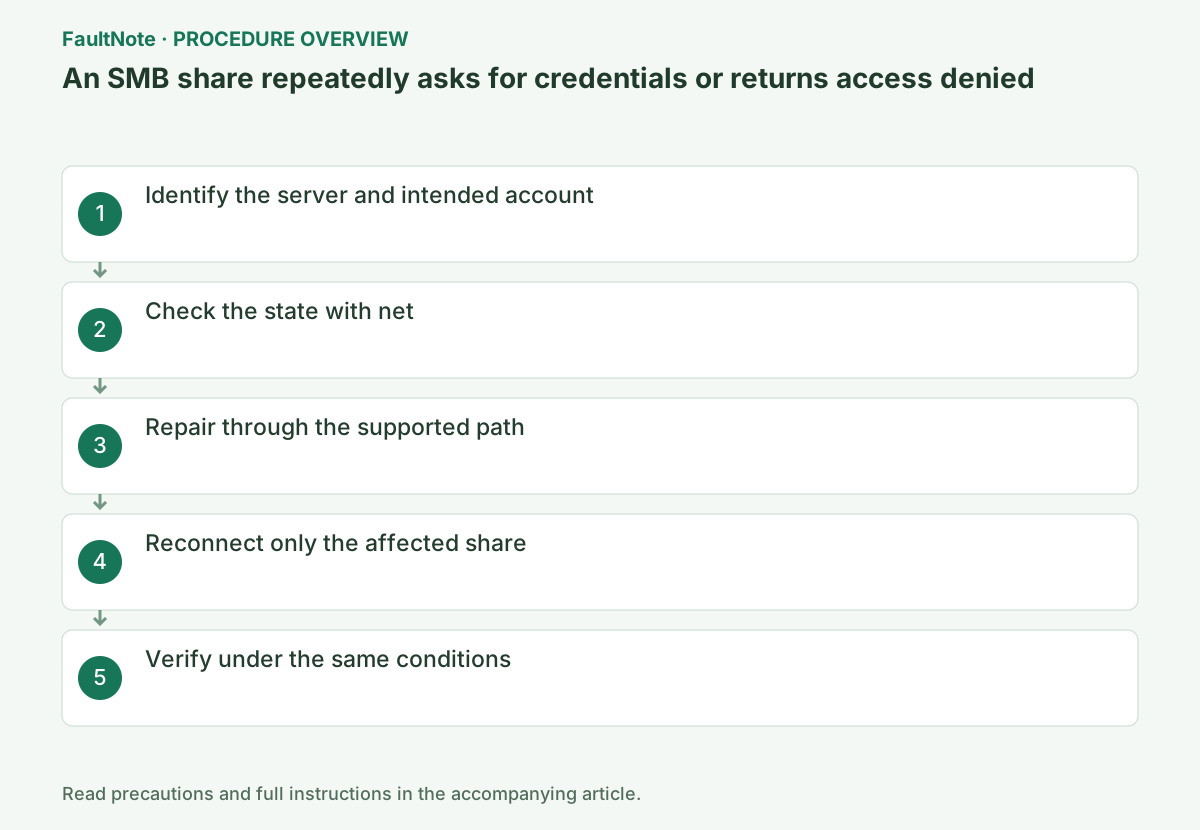
Step-by-step instructions
Check the share’s UNC path in File Explorer. Record both the hostname and IP address if you used both. Ask the server owner which account has both share permissions and file-system permissions.
Separate unreachable server, repeated credential prompts and denied access after authentication. A timeout is not fixed merely by deleting passwords. Record UNC path, failure stage and the last successful user; confirm organizational account syntax rather than repeatedly trying unrelated personal accounts.
A server may have separate saved credentials for its short name, FQDN or IP address. Match the actual UNC path with Credential Manager entries. Record the account name before removing an entry, without putting passwords into diagnostic notes or screenshots.
List current SMB connections and identify the exact server and share involved before removing anything.
Match the current drive letter, UNC path, and state. Operate only on the row for the intended server and share; leave other sessions intact.
Inspect current net use connections and open files before disconnecting. Remove only credentials for the affected server, leaving other saved entries alone. Record short-name/IP naming differences and ask the administrator about any approved canonical name rather than changing the naming design unilaterally.
net useDisconnect only the stale session for the affected UNC path, remove only the matching Windows Credential in Credential Manager, and reconnect with the intended DOMAIN\user or SERVER\\user identity.
Match the current drive letter, UNC path, and state. Operate only on the row for the intended server and share; leave other sessions intact.
Run net use in Command Prompt against only the affected UNC path. Replace server and share, close files open from that share, and do not use /delete * because it disconnects unrelated business shares.
Do not place passwords in command text. Root access does not guarantee child-folder permissions, and read-only access should not be judged by a write test. Use an approved small test file without overwriting existing data. Verify Explorer and the actual application separately using the same path.
net use \\server\share /deleteOfficial links for this step
- Accessing Credential Manager
Check the official requirements, interface names, and limitations for this step.
- Accessing Credential Manager
Replace server, share, DOMAIN and user with your actual values. Save and close documents on the affected share before disconnecting that connection only. After removing the relevant stored credential, reopen the same UNC path in File Explorer and authenticate with the correct account. Do not embed passwords in command text.
If correct credentials still fail for one folder, check server-side share and filesystem permissions. Compare access to another permitted share once. Avoid removing all credentials or enabling guest access as a shortcut; give the share administrator the account and folder involved.
Run net use \\server\share /user:DOMAIN\user and repeat the original operation once under the same conditions. If it succeeds, verify again after a restart and record the setting that changed.
Match the current drive letter, UNC path, and state. Operate only on the row for the intended server and share; leave other sessions intact.
Limit failed attempts and ask about lockout or password changes. Local credential repair cannot correct server permissions. Provide path, naming method, account authority, full error and time without the password. Compare another device only with the same account and share; another user success is not evidence of this user permissions.
net use \\server\share /user:DOMAIN\user
Check the result
- The required account opens the folder and performs only permitted read/write operations
- The verification command reports the expected enabled, healthy, or connected state.
- The result remains correct after a Windows restart and no new matching critical event appears.
If the problem continues
- If access remains denied, request a server-side permissions review
- If hardware requirements, organization policy, or server settings are responsible, ask the owner to make the change instead of bypassing it on the client.
Scope of this guide
Troubleshooting guide — Restore the feature so it starts, connects, or completes normally and passes the same verification after a Windows restart.
Frequently asked questions
Should I delete every saved credential?
Remove only the Windows credential for the target server. Bulk deletion can affect other shares, RDP, and business apps.
Can I use two accounts against the same server simultaneously?
Windows can reject multiple credential sets to one server. Close existing SMB sessions before connecting as the other account.
The share root opens, but one folder denies access.
Credentials may already be correct. Ask about share and folder permissions, test permitted reading and writing separately, and avoid bulk credential removal or enabling guest access first.
Official sources and dates
Source publication or resolution date: Not specified. Sources checked: 2026-10-13. The check date is not the date the problem first occurred. Interface labels can vary between versions and display languages.