Fix Zoom when others cannot hear you or you cannot hear them
What to do first
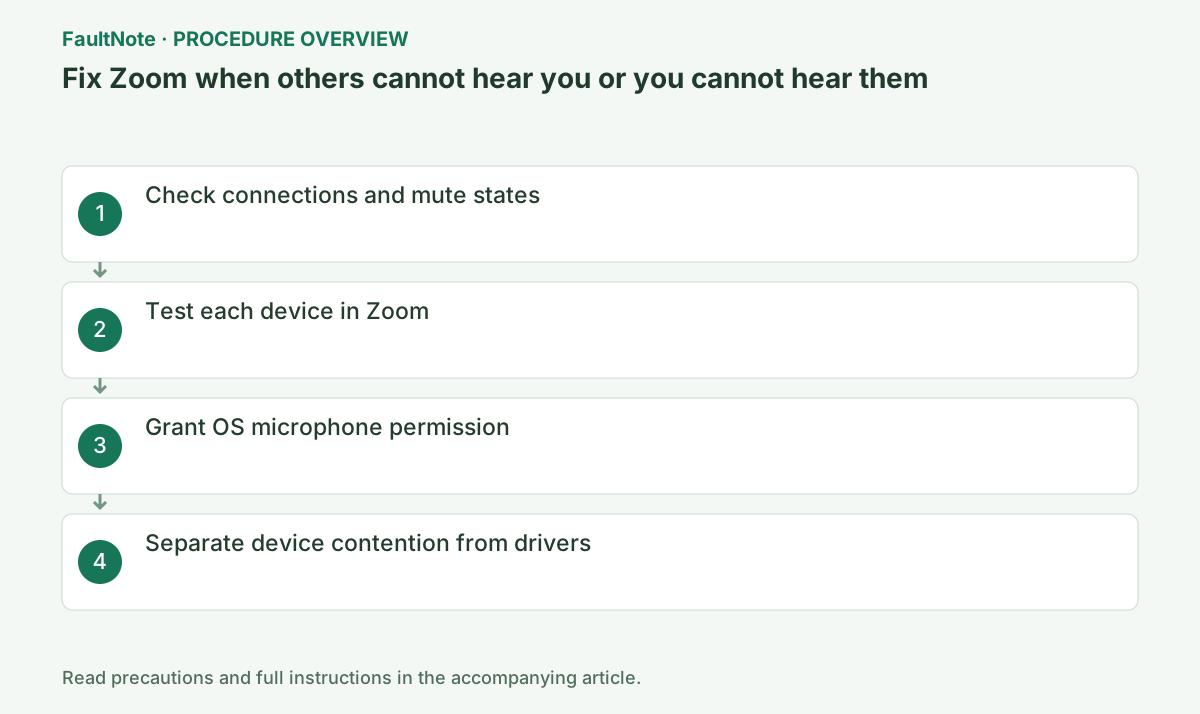
Test Zoom microphones and speakers separately, comparing OS detection, Zoom selection, and meeting transmission. Distinguish one-way audio, Bluetooth changes, permissions, and device contention, then verify both directions.
This is a general troubleshooting guide, not an announcement of a current outage.
Affected products and symptoms
- Product
- Zoom Workplace
- Versions and conditions
- Zoom desktop app for Windows and macOS
Symptoms
- The microphone meter does not move
- Speaker test or meeting audio is silent
Causes and conditions
Isolate physical mute, Zoom device selection, OS permission, another app holding the device, and drivers in that order.
Before you start
- Before changes, record and preserve Zoom Audio settings, exact device names, and OS recorder result.
- Change one item at a time and record the original symptom after each stage.
Precautions
- Do not bulk-delete unrelated settings or data.
- Exclude personal data and credentials; share only the necessary parts of Zoom Audio settings, exact device names, and OS recorder result.
Tools and official pages used in this guide
Check the official page for exact setting names, limitations, and updated decision paths.
Official Zoom Download Center for a Zoom-only reinstall.
Step-by-step instructions
Reconnect the headset and check its hardware mute, Bluetooth connection, and the Windows volume mixer. In a meeting, also open the arrow beside Mute.
Default/Same as System can follow device changes during a meeting. Select the named hardware during diagnosis.
Sign in, then open profile picture > Settings > Audio. During a meeting, the arrow beside Mute > Audio Settings opens the same page.
Check that computer audio has been joined; entering the meeting does not prove audio connection. If using a phone or another device, decide which handles audio and avoid nearby simultaneous active microphones and speakers.
Official links for this step
- Official Zoom Workplace troubleshooting
Check the official page for exact setting names, limitations, and updated decision paths.
- Official Zoom Workplace troubleshooting
Open profile picture > Settings > Audio. Run Test Speaker and Test Mic, and select the actual hardware name in each dropdown.
Test Mic records and plays back speech. Check distortion, one-channel audio, and very low level, not only meter movement.
Verify speaker test playback before recording a mic test. A recorded voice can be inaudible if output points at a monitor. Record device names and independent input/output results.
On Windows, open Settings > Privacy & security > Microphone and enable microphone access plus desktop-app access. On macOS use System Settings > Privacy & Security > Microphone.
Windows Allow desktop apps to access your microphone is separate from individual app controls and matters for Zoom desktop.
Compare a standard Windows recording. OS failure prioritizes hardware mute and selection; Zoom-only failure prioritizes its device and permission. Restart Zoom after permission changes and verify the selected microphone.
Close recording and calling apps, then restart. If the OS recorder also fails, update the manufacturer’s driver; if only Zoom fails, reinstall the latest Zoom app.
If closing another app fixes it, inspect that app’s exclusive mode or automatic switching before reinstalling drivers.
Official links for this step
- Official Zoom Workplace download
Official Zoom Download Center for a Zoom-only reinstall.
- Official Zoom Workplace download
If you hear others but they cannot hear you, prioritize input; reverse behavior prioritizes output. Local tests do not verify meeting mute or host restrictions. Ask the host if unmuting is disabled.
For Bluetooth changes when a meeting begins, inspect selected devices and compare wired output or another input. Call-mode behavior can affect some hardware; distinguish quality changes from dropouts and detection.
Verify both directions in a small test meeting, then check other applications' volume. Preserve device names and OS recording results before reinstalling, choosing device or Zoom support according to scope.
Check the result
- pass Test Speaker and Test Mic playback, then confirm two-way audio in a test meeting
- Check adjacent basic functions for side effects from the change.
If the problem continues
- contact the hardware maker if OS recording fails, or Zoom Support with logs if only Zoom fails
- When continuing with a workaround, preserve original files or account data separately.
Scope of this guide
Troubleshooting guide — Test Zoom microphones and speakers separately, comparing OS detection, Zoom selection, and meeting transmission. Distinguish one-way audio, Bluetooth changes, permissions, and device contention, then verify both directions.
Frequently asked questions
The meter moves but nobody hears me.
Check meeting mute, host restrictions, input mode, and the selected microphone.
Why does Bluetooth quality drop?
Some devices switch to a call profile. Test wired audio or another device to isolate Zoom.
Test Mic records, but others cannot hear me.
Check joined audio, mute, and host restrictions. Local recording proves detection, not transmission. Verify arrival in a test meeting with the same input.
Will reinstalling fix input and output?
OS mute, connectivity, Bluetooth state, and hardware faults may remain. Compare OS and Zoom tests first, reinstall only where appropriate, and reselect both devices afterward.
Official sources and dates
Source publication or resolution date: Not specified. Sources checked: 2026-10-13. The check date is not the date the problem first occurred. Interface labels can vary between versions and display languages.