Fix a missing or frozen camera in a Zoom meeting
What to do first
Diagnose black or frozen Zoom video through camera selection, privacy shutter, permissions, and another application. Distinguish physical and virtual cameras, local previews, and video received by participants.
This is a general troubleshooting guide, not an announcement of a current outage.
Affected products and symptoms
- Product
- Zoom Workplace
- Versions and conditions
- Zoom desktop app for Windows and macOS
Symptoms
- Zoom cannot detect the camera when starting video
- Video is black or frozen, or Zoom crashes
Causes and conditions
Wrong camera selection, OS permission, another app holding the camera, drivers, or damaged Zoom files are candidates.
Before you start
- Before changes, record and preserve camera name, Zoom Video preview, and OS camera-app result.
- Change one item at a time and record the original symptom after each stage.
Precautions
- Do not bulk-delete unrelated settings or data.
- Exclude personal data and credentials; share only the necessary parts of camera name, Zoom Video preview, and OS camera-app result.
Tools and official pages used in this guide
Check the official page for exact setting names, limitations, and updated decision paths.
Official Zoom Download Center; use only after the tests indicate reinstallation.
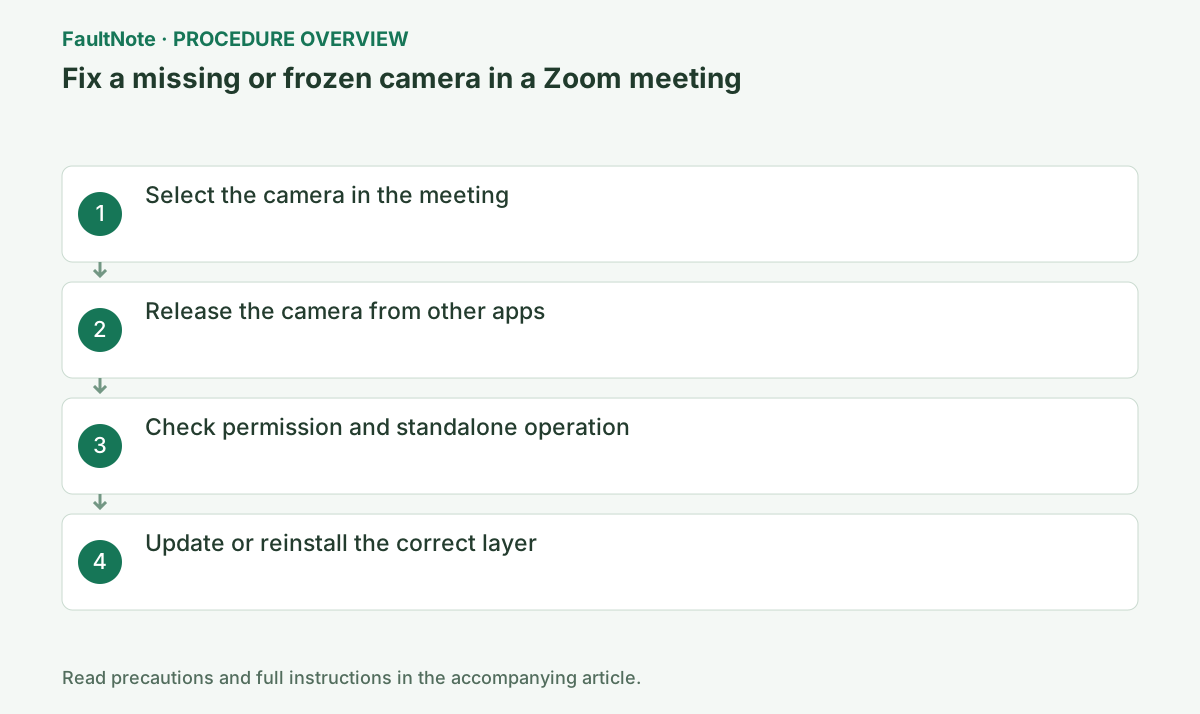
Step-by-step instructions
Open the arrow beside Start/Stop Video > Video Settings, then test each built-in or USB camera under Camera. Alt+N also switches cameras.
If Video preview is black, choose the real USB/built-in camera rather than OBS Virtual Camera or another virtual device.
Open profile picture > Settings > Video & effects and inspect preview. In a meeting, the arrow beside Start Video shows the selected camera.
Record whether the selected entry is built-in, USB, or virtual. Virtual cameras can require an active producing app. Select physical hardware for comparison and move slightly to confirm live updates.
Fully close Camera, Teams, Discord, and browser meeting tabs, then reconnect a USB camera. Check a physical shutter or Fn camera key.
A physical shutter overrides OS permission. Check its LED and the manufacturer privacy key.
Inspect meeting tabs and background apps, coordinating time before closing ongoing calls. Reselect the camera in Zoom after reconnecting USB hardware if its listing changed.
Allow Zoom under Windows Settings > Privacy & security > Camera or macOS Privacy & Security > Camera, then test the OS camera app.
If the system Camera app also fails, stop changing Zoom and inspect port, cable, Device Manager, and maker diagnostics.
If the standard Windows camera is black, inspect shutters, manufacturer privacy controls, and connectivity. Standard-app success narrows investigation toward Zoom permissions and selection. Close the comparison app before returning to Zoom.
Official links for this step
- Official Zoom Workplace troubleshooting
Check the official page for exact setting names, limitations, and updated decision paths.
- Official Zoom Workplace troubleshooting
If the OS app freezes too, update the device maker’s camera driver. If only Zoom fails, uninstall it and install the latest build from Zoom Download Center.
Reinstall only when failure is Zoom-specific, using Download Center with time for a test before the meeting.
Official links for this step
- Official Zoom Workplace download
Official Zoom Download Center; use only after the tests indicate reinstallation.
- Official Zoom Workplace download
Distinguish immediate black output from a freeze after minutes. Record hardware, connection, effects, and timing. Remove effects individually while preserving test duration rather than changing every quality option.
If the local preview moves but remote video freezes, investigate transmission separately. Compare other participants to identify receiver-specific behavior. A healthy preview does not prioritize camera-driver reinstallation.
Before reinstallation, record the camera and settings and preserve the Zoom-only failure comparison. Verify preview, test meeting, and another startup, checking live updates over time rather than a single frame.
Check the result
- confirm stable preview and test-meeting video, with the same camera selected after restart
- Check adjacent basic functions for side effects from the change.
If the problem continues
- contact the device maker if the OS app fails, or Zoom Support if only Zoom fails
- When continuing with a workaround, preserve original files or account data separately.
Scope of this guide
Troubleshooting guide — Diagnose black or frozen Zoom video through camera selection, privacy shutter, permissions, and another application. Distinguish physical and virtual cameras, local previews, and video received by participants.
Frequently asked questions
Preview works but the meeting does not.
Check the in-meeting camera, host video restrictions, and whether a virtual camera was selected.
What should I test before reinstalling?
Close competing apps, confirm OS permission, and test the system camera app first.
Only the virtual camera is black.
Inspect its producing application and source. Physical detection is working; use it temporarily while investigating the virtual path rather than replacing hardware or deleting all drivers.
The preview works, but participants see frozen video.
Local capture and delivered video differ. Compare participants and whether audio also freezes. Record scope and time before moving to transmission diagnosis instead of repeated camera resets.
Official sources and dates
- Troubleshooting camera issues during a meeting ↗
- Troubleshooting issues with Zoom video crashing or freezing ↗
Source publication or resolution date: Not specified. Sources checked: 2026-10-13. The check date is not the date the problem first occurred. Interface labels can vary between versions and display languages.