Windows Hello PIN is unavailable or must be reset
What to do first
Windows Hello PIN is unavailable or must be reset. TPM state, account authentication, organization policy, or the PIN container may be inconsistent. Record the current state before changing it, use only the supported Windows path described below, and verify the same operation again after any required restart.
This is a general troubleshooting guide, not an announcement of a current outage.
Affected products and symptoms
- Product
- Windows Hello
- Versions and conditions
- Windows 11 (confirm the edition and hardware requirements for the feature)
- Error codes and identifiers
- 0x80090016
Symptoms
- Windows Hello PIN is unavailable or must be reset.
- The same condition can persist after a retry or restart.
Causes and conditions
TPM state, account authentication, organization policy, or the PIN container may be inconsistent.
Before you start
- Save open documents and allow time for a Windows restart if required.
- Run administrative actions only on a personally managed PC or with administrator approval.
- Save the diagnostic command output so the before and after states can be compared.
Precautions
- Do not bulk-delete registry entries, system folders, credentials, or storage metadata.
- Do not run unofficial scripts or unknown drivers with administrator rights.
Tools and official pages used in this guide
Check the official requirements, interface names, and limitations for this step.
Step-by-step instructions
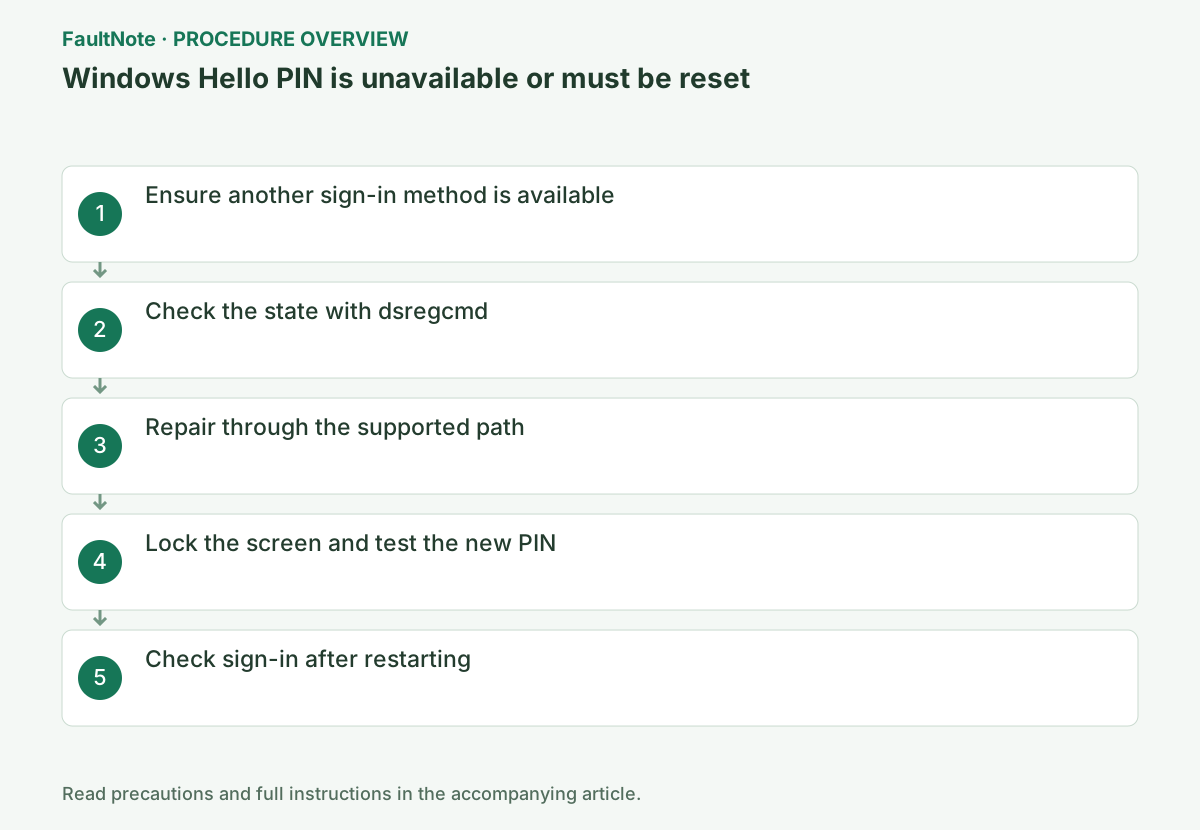
At the sign-in screen, check whether Sign-in options offers a password. Confirm access to the email address or phone used to verify your Microsoft account. Contact IT if identity verification for a work account cannot proceed.
On the sign-in screen choose Sign-in options > password key and sign in with your own Microsoft or work account on this PC. Signing in as another administrator does not reset the PIN for your account.
Use Sign-in options to check whether an already configured method such as a password works. Identity verification for a forgotten PIN requires access to the account. If the password is also unavailable, use account recovery rather than deleting PIN-related folders.
Confirm that password sign-in and Internet access work, then record dsregcmd /status. On a managed PC, give the output to the administrator rather than changing join or policy state.
Open Settings > Accounts > Sign-in options > PIN (Windows Hello), choose I forgot my PIN, complete identity verification, and create a new PIN.
Official links for this step
- Change or reset your PIN in Windows
Check the official requirements, interface names, and limitations for this step.
- Change or reset your PIN in Windows
After recreating the PIN, save your documents and press Windows key + L to lock the screen. Verify that the new PIN signs you in. Clearing the TPM or manually deleting the NGC folder is not required for this procedure.
If signed in, review Windows Hello PIN under Settings > Accounts > Sign-in options. Managed devices may restrict these controls; follow the organization identity process. Save work, lock the screen and test the new PIN once after changing it.
After confirming your alternative password is available, restart and sign in with the new PIN. If Windows asks you to recreate it again, report the account type and on-screen error to IT.
Check the result
- After locking the screen, the new PIN returns to the same account
- The verification command reports the expected enabled, healthy, or connected state.
- The result remains correct after a Windows restart and no new matching critical event appears.
If the problem continues
- If identity verification fails, check access to recovery methods such as the recovery email
- If hardware requirements, organization policy, or server settings are responsible, ask the owner to make the change instead of bypassing it on the client.
Scope of this guide
Troubleshooting guide — Restore the feature so it starts, connects, or completes normally and passes the same verification after a Windows restart.
Frequently asked questions
Why is I forgot my PIN missing?
It can be unavailable for a local account or while offline. Choose Sign-in options, use the password, then reset the PIN in Settings.
Should I delete the NGC folder?
No. Manual deletion can damage permissions and Windows Hello. Use the supported PIN reset flow first.
Official sources and dates
Source publication or resolution date: Not specified. Sources checked: 2026-10-13. The check date is not the date the problem first occurred. Interface labels can vary between versions and display languages.
Related troubleshooting guides
Windows errors and troubleshooting →