Resolve and restore VS Code Settings Sync conflicts
What to do first
Read Settings Sync differences and Local/Remote replacement direction, then merge useful keys. Compare backup history, Stable versus Insiders, and the result across devices.
This is a general troubleshooting guide, not an announcement of a current outage.
Affected products and symptoms
- Product
- Visual Studio Code
- Versions and conditions
- VS Code Stable and Insiders
Symptoms
- VS Code asks for Accept Local or Accept Remote
- Another machine’s settings or extensions do not appear
Causes and conditions
Inspect the conflict diff and decide which local or cloud value to keep.
Before you start
- Before changes, record and preserve the conflict diff, synced machine names, and Settings Sync log.
- Change one item at a time and record the original symptom after each stage.
Precautions
- Do not bulk-delete unrelated settings or data.
- Exclude personal data and credentials; share only the necessary parts of the conflict diff, synced machine names, and Settings Sync log.
Tools and official pages used in this guide
Check the official page for exact setting names, limitations, and updated decision paths.
Official VS Code download; verify Stable versus Insiders before adding a build.
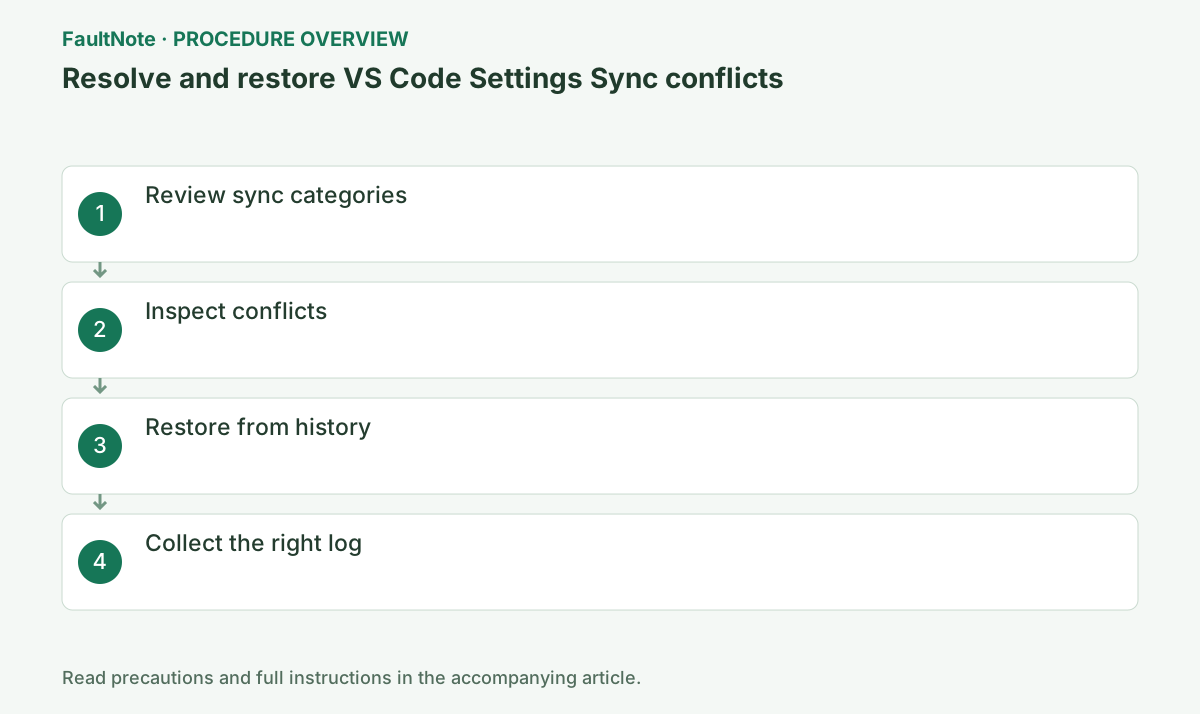
Step-by-step instructions
Open gear > Settings Sync is On > Settings Sync: Configure and review settings, keys, extensions, and profiles.
Extensions in Remote SSH, WSL, and devcontainers are not synchronized.
Settings Sync: Configure can stop one category without deleting all cloud data.
Select the lower-left gear > Settings Sync is On > Settings Sync: Show Synced Data. Record machine, last sync time, and changed category before resolving.
Check the affected category and read changed lines. Replacing a category for one key changes others; merge needed settings and check JSON syntax before completion.
Official links for this step
- Official Visual Studio Code troubleshooting
Check the official page for exact setting names, limitations, and updated decision paths.
- Official Visual Studio Code troubleshooting
Choose Show Conflicts and preserve both sides before deciding.
Accept Local overwrites cloud data; Accept Remote overwrites the local copy.
In Show Conflicts, inspect both sides and edit JSON by key. Accept Local then publishes the edited local copy.
Verify history category and timestamp, preserve current settings, and inspect restored keys in user JSON. Workspace overrides can explain unchanged behavior without repeatedly restoring older versions.
Run Settings Sync: Show Synced Data and inspect data history and machine names before restoring.
Stable and Insiders use separate sync services by default.
Settings Sync: Show Synced Data expands Settings, Keybindings, Extensions, and history for inspection before restore.
On a stale device, inspect account and conflicts. Read the diff when reconnecting offline devices. Finalize one machine first, then verify identical keys on the next.
Open View > Output > Log (Settings Sync); also save Account logs for authentication errors.
Do not accidentally select cloud-data deletion while turning sync off.
Select the Stable sync service in Insiders only when intentional. Version incompatibility can automatically pause Stable sync.
Official links for this step
- Official Visual Studio Code download
Official VS Code download; verify Stable versus Insiders before adding a build.
- Official Visual Studio Code download
Copy local settings JSON and keybindings elsewhere before resolving a conflict. Local means this device and Remote means the synchronization service; Remote is not automatically newer or correct. Compare content if several devices were edited offline.
Accept Local or Replace Remote overwrites cloud data with local data. Accept Remote or Replace Local overwrites local data with cloud data. When useful keys exist on both sides, edit the merge result in Show Conflicts and select Complete Merge.
Stable and Insiders use separate sync services by default. Check the build and service if the same account has different histories. Workspace overrides can also make effective settings differ even after user-settings synchronization succeeds.
Inspect history with Settings Sync: Show Synced Data and, when needed, local Sync Activity. Preserve the current content before restoring a version and verify its data category and timestamp.
After merging on one device, inspect the same keys on another. Stopping synchronization on one device differs from stopping all devices and clearing cloud data; do not choose the latter merely to investigate a conflict.
Check the result
- confirm settings, keybindings, and selected extensions agree on the reference and second machine
- Check adjacent basic functions for side effects from the change.
If the problem continues
- report with Log (Settings Sync) and, for authentication, the Account log
- When continuing with a workaround, preserve original files or account data separately.
Scope of this guide
Troubleshooting guide — Read Settings Sync differences and Local/Remote replacement direction, then merge useful keys. Compare backup history, Stable versus Insiders, and the result across devices.
Frequently asked questions
Which side should I accept?
Inspect the diff and choose the authoritative machine; the labels determine overwrite direction.
Why are WSL extensions absent?
Remote-window extensions are outside Settings Sync.
Can Local affect other machines?
Local overwrites cloud data and can propagate to syncing devices. Preserve needed settings from other machines and merge when both contain useful keys.
Restored JSON is correct but behavior is unchanged.
Check workspace overrides, enabled extensions, and remote configuration. Successful sync and effective application differ; inspect the active settings level before another restore.
Official sources and dates
Source publication or resolution date: Not specified. Sources checked: 2026-10-13. The check date is not the date the problem first occurred. Interface labels can vary between versions and display languages.