Use VS Code Extension Bisect to isolate freezes or abnormal behavior
What to do first
Compare extension-free startup and Extension Bisect with consistent files and actions. Confirm candidates in a normal session, choose disablement scope, and prepare reproduction details.
This is a general troubleshooting guide, not an announcement of a current outage.
Affected products and symptoms
- Product
- Visual Studio Code
- Versions and conditions
- VS Code desktop
Symptoms
- Typing or saving becomes unstable after adding extensions
- Disabling all extensions fixes the issue
Causes and conditions
Extension Bisect halves the enabled extensions to identify the contributor.
Before you start
- Before changes, record and preserve enabled extension list, workspace name, and reproduction steps.
- Change one item at a time and record the original symptom after each stage.
- Record file type, workspace, extension IDs and versions, failing action, and remote environment. Preserve unsaved code and terminal work before repeated reloads and make the same file available in every bisect round.
Precautions
- Do not bulk-delete unrelated settings or data.
- Exclude personal data and credentials; share only the necessary parts of enabled extension list, workspace name, and reproduction steps.
Tools and official pages used in this guide
Check the official page for exact setting names, limitations, and updated decision paths.
Official Visual Studio Code download if the editor itself must be reinstalled.
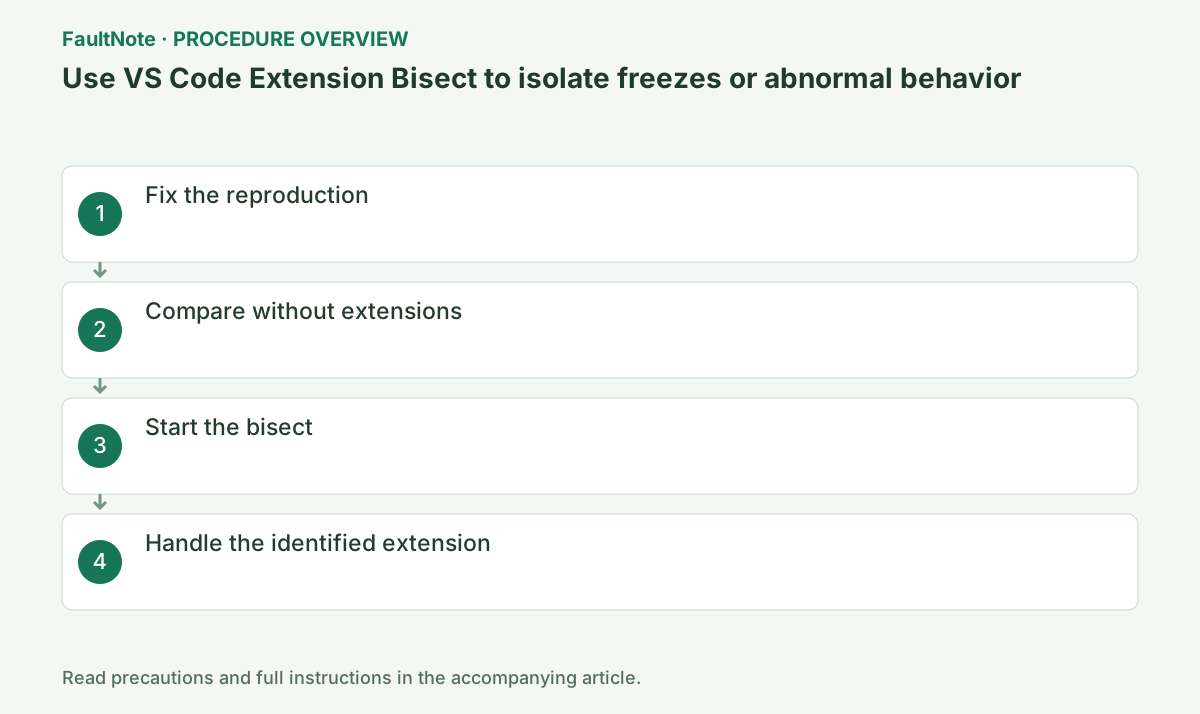
Step-by-step instructions
Save files and reproduce with the same folder and action.
If an empty window works, also record workspace settings.
In Extensions > More Actions > Enabled, confirm the candidate set and distinguish extensions installed only in Remote or WSL.
Open View > Extensions and enter @enabled. If connected remotely, record the lower-left connection indicator so local and remote extensions are not mixed.
Record the action sequence, timing, language, and file size. Changing files between rounds changes load and language-server activation, weakening the comparison.
Run Developer: Reload With Extensions Disabled from the Command Palette.
If it still fails, investigate VS Code or configuration rather than blaming an extension.
If the symptom remains during the initial all-disabled test, Bisect can conclude it is not an extension. This baseline prevents false blame.
If all extensions disabled still fails, compare an empty window with the workspace and record files, configuration, remote connections, and tasks. This usefully rules against an extension-only diagnosis.
Run Help: Start Extension Bisect and answer Good now or This is bad after each reload.
Use the exact same reproduction each round so the result remains valid.
Good now means the current set works; This is bad means the symptom remains. Complete the reproduction before answering.
Distinguish Disable from Disable (Workspace). Workspace scope limits other projects' effects but removes functions here. Identify the candidate's formatter and completion features and verify a workable alternative.
Disable the candidate and verify after a normal reload, then update it, adjust its settings, or report with logs.
Record extension ID, version, and settings before uninstalling.
After identification, Disable (Workspace) affects this project, while Disable applies globally. Choose the intended scope.
Official links for this step
- Official Visual Studio Code troubleshooting
Check the official page for exact setting names, limitations, and updated decision paths.
- Official Visual Studio Code download
Official Visual Studio Code download if the editor itself must be reinstalled.
- Official Visual Studio Code troubleshooting
For a freeze on save, repeat the same file type, save action, and workspace every round. Formatting and completion activate different extension behavior, so redefining the symptom midway makes the result unreliable.
Wait for initialization after each reload before judging. A problem that requires a running language server cannot be marked good merely because the first few seconds are quiet. Repeat the operation when you cannot confidently assess the symptom.
For Remote, WSL, or containers, record where extensions execute. If only a local session works, connection delays or the remote language server may contribute; the extension ID alone does not describe those environment differences.
After bisect identifies a candidate, exit bisect and compare the normal enabled set with only that candidate disabled. Check whether enabling it reproduces the issue and disabling it improves the same action; this reduces confusion with a transient recovery.
For interactions between extensions, treat the result as a starting point and inspect dependencies and settings. Report the extension ID, version, remote environment, and reproduction steps without sharing private source contents.
Check the result
- recheck save, completion, and terminal behavior in a normal window with only the candidate disabled
- Check adjacent basic functions for side effects from the change.
If the problem continues
- use Help: Report Issue, choose Extension, and send its ID, version, and reproduction
- When continuing with a workaround, preserve original files or account data separately.
Scope of this guide
Troubleshooting guide — Compare extension-free startup and Extension Bisect with consistent files and actions. Confirm candidates in a normal session, choose disablement scope, and prepare reproduction details.
Frequently asked questions
Does Bisect erase settings?
It temporarily toggles extensions; it is not normally a settings deletion.
What if the first all-disabled test still fails?
That is strong evidence the cause is outside extensions.
Can bisect diagnose an intermittent issue?
Unstable reproduction makes judgments unreliable. Fix the file and initialization timing, repeat the action, and confirm the candidate enabled versus disabled in a normal session.
The candidate is disabled, but freezing remains.
Compare conditions with bisect. Record all-disabled, candidate-only, and normal-set-with-candidate-disabled results separately. Interactions or remote issues may contribute; report versions and reproduction steps.
Official sources and dates
Source publication or resolution date: Not specified. Sources checked: 2026-10-13. The check date is not the date the problem first occurred. Interface labels can vary between versions and display languages.