Fix OBS streaming dropped frames and disconnects
What to do first
Separate network drops from rendering and encoding lag. Compare ingest destination, bitrate, and route with a consistent scene, including Dynamic Bitrate quality tradeoffs.
This is a general troubleshooting guide, not an announcement of a current outage.
Affected products and symptoms
- Product
- OBS Studio
- Versions and conditions
- OBS Studio on Windows, macOS, and Linux
Symptoms
- Dropped Frames increases and stream playback breaks up
- OBS repeatedly reconnects to the ingest server
Causes and conditions
Dropped Frames means the path from the computer to the ingest server cannot sustain the configured bitrate.
Before you start
- Before changes, record and preserve Stats counters, OBS log, bitrate, and ingest server name.
- Change one item at a time and record the original symptom after each stage.
Precautions
- Do not bulk-delete unrelated settings or data.
- Exclude personal data and credentials; share only the necessary parts of Stats counters, OBS log, bitrate, and ingest server name.
Tools and official pages used in this guide
Check the official page for exact setting names, limitations, and updated decision paths.
Official OBS download when an app update is required.
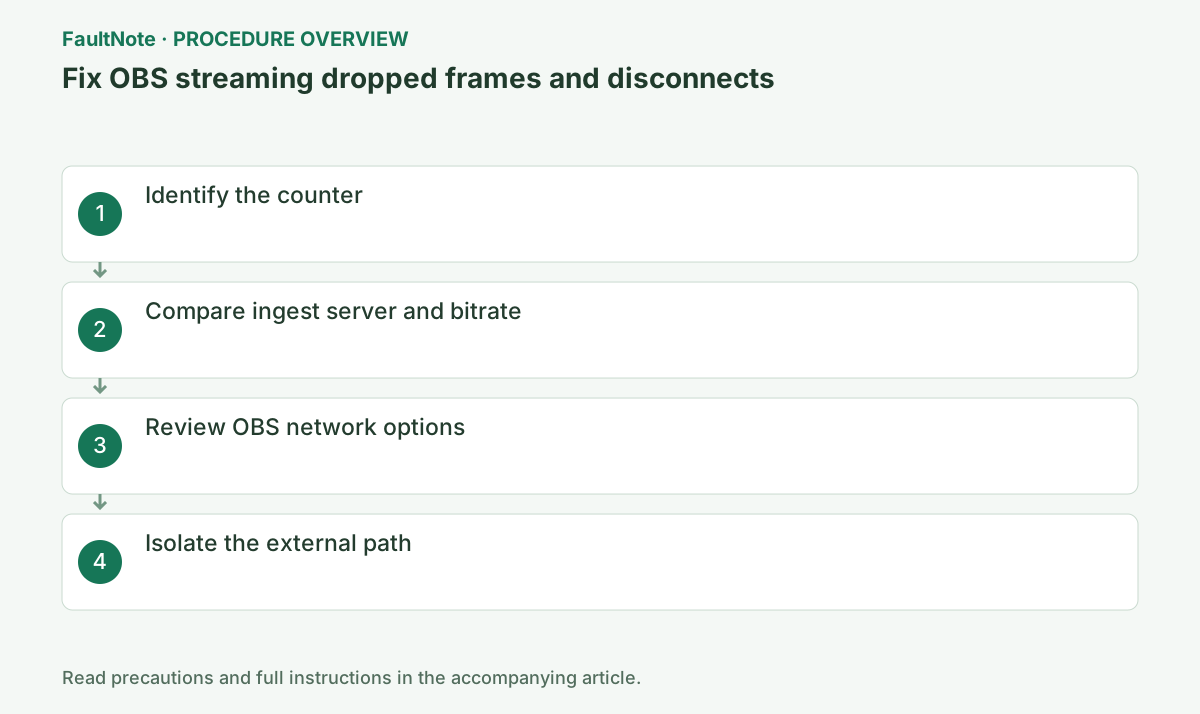
Step-by-step instructions
Open View > Stats and inspect Dropped Frames (Network). If Rendering Lag or Encoding Lag dominates, use GPU/encoder troubleshooting instead.
Dropped Frames is network; Skipped Frames due to Encoding Lag is encoder; Missed Frames due to Rendering Lag is GPU. Do not mix them up.
During a short test stream open View > Stats and record Dropped Frames, Rendering Lag, and Encoding Lag at the same time.
Record counters at the beginning and end and separate earlier accumulated values from this comparison. If Network remains zero, inspect rendering and encoding lag instead of repeatedly changing DNS or routing.
Temporarily lower bitrate within the service recommendation and run a short private test against another official ingest server. Peak speed-test results do not prove stability.
Even below peak upload speed, packet loss or route congestion causes drops. Compare rates over a sustained private stream.
Lower bitrate alone with the same scene and duration. Retain baseline values; simultaneous destination and encoder changes obscure causality. Verify visibility settings when testing another service.
On Windows open Settings > Advanced > Network, enable Network Optimizations and TCP pacing, and keep Bind to IP at Default. Revert IPv4 Only if comparison shows no benefit.
Use Bind to IP Default; a fixed adapter can fail after network changes. Keep IPv4 Only only if comparison helps.
Compare network options individually and revert ineffective changes. Inspect quality under Dynamic Bitrate and stability during transmission rather than peak speed. Record competing uploads without interrupting other users without permission.
Official links for this step
- Official OBS Studio troubleshooting
Check the official page for exact setting names, limitations, and updated decision paths.
- Official OBS Studio troubleshooting
Test Ethernet, disconnect an optional VPN, and restart the router. Dynamic bitrate is a quality-reducing workaround for congestion, not a repair for the underlying link.
Dynamic bitrate trades quality for connection stability. It does not prove the network cause is repaired.
Official links for this step
- Official OBS Studio download
Official OBS download when an app update is required.
- Official OBS Studio download
In View > Stats, distinguish Dropped Frames (Network), rendering lag, and encoding lag. Network growth points toward the route to the ingest server; rendering or encoding growth calls for investigating local processing load. Their combined total is not a reason to replace a GPU.
Use the same scene and test duration, recording beginning and ending counters, bitrate, and destination. Different game workloads or very brief tests make comparisons less informative.
Do not choose a bitrate solely from a speed test's peak upload value; observe stability during transmission. Improvement on another ingest server suggests a route difference, while improvement at a lower bitrate warrants investigating bandwidth and congestion.
Dynamic Bitrate reduces bitrate during congestion as a workaround; it does not repair the route. Compare image quality and actual bitrate as well as drop counts to determine whether the workaround meets your needs.
Include the failing stream's time and statistics when sharing a log, without sharing the stream key. Revert network options that made no difference and record which change actually helped.
Check the result
- run a private test for at least ten minutes with no rising dropped-frame rate or reconnect count
- Check adjacent basic functions for side effects from the change.
If the problem continues
- give the ISP or streaming service the OBS log and ingest test result
- When continuing with a workaround, preserve original files or account data separately.
Scope of this guide
Troubleshooting guide — Separate network drops from rendering and encoding lag. Compare ingest destination, bitrate, and route with a consistent scene, including Dynamic Bitrate quality tradeoffs.
Frequently asked questions
Recording is fine but streaming drops.
That points more strongly to the upload path or ingest service.
Should Dynamic Bitrate always stay on?
It can avoid disconnects during congestion but reduces quality and does not diagnose the root cause.
A lower bitrate helped. Is the network hardware broken?
It suggests the route cannot sustain the original setting, not necessarily hardware failure. Compare congestion, destination, VPN, and repeatability. A quality-acceptable lower setting can be a temporary workaround.
Network is zero, but the video stutters.
Check rendering and encoding lag, local load, game frame rate, and local recording. Identify the growing counter before changing further network settings.
Official sources and dates
Source publication or resolution date: Not specified. Sources checked: 2026-10-13. The check date is not the date the problem first occurred. Interface labels can vary between versions and display languages.