Discord Waiting for Voice Server, No Route or RTC Connecting
What to do first
Investigate Discord No Route and RTC Connecting through service status, channel scope, VPN, and connection differences. Separate text from voice connectivity and review managed-network requirements.
This is a general troubleshooting guide, not an announcement of a current outage.
Affected products and symptoms
- Product
- Discord
- Versions and conditions
- Discord desktop and browser apps
- Error codes and identifiers
- No RouteRTC ConnectingICE Checking
Symptoms
- No Route, RTC Connecting, or ICE Checking never completes
- Voice alone fails on a particular network
Causes and conditions
Besides a Discord outage, the router, ISP, VPN, or firewall can interfere with the route to voice servers.
Before you start
- Before changes, record and preserve Discord Status, error state, ISP, VPN state, region, and time.
- Change one item at a time and record the original symptom after each stage.
- Record error time, affected calls, participants, VPN, connection, and device. Use permitted comparison calls and coordinate the effect of router restarts or connection changes on shared users; prepare to change one condition at a time.
Precautions
- Do not bulk-delete unrelated settings or data.
- Exclude personal data and credentials; share only the necessary parts of Discord Status, error state, ISP, VPN state, region, and time.
Tools and official pages used in this guide
Check the official page for exact setting names, limitations, and updated decision paths.
Official Discord download for an update or reinstall.
Step-by-step instructions
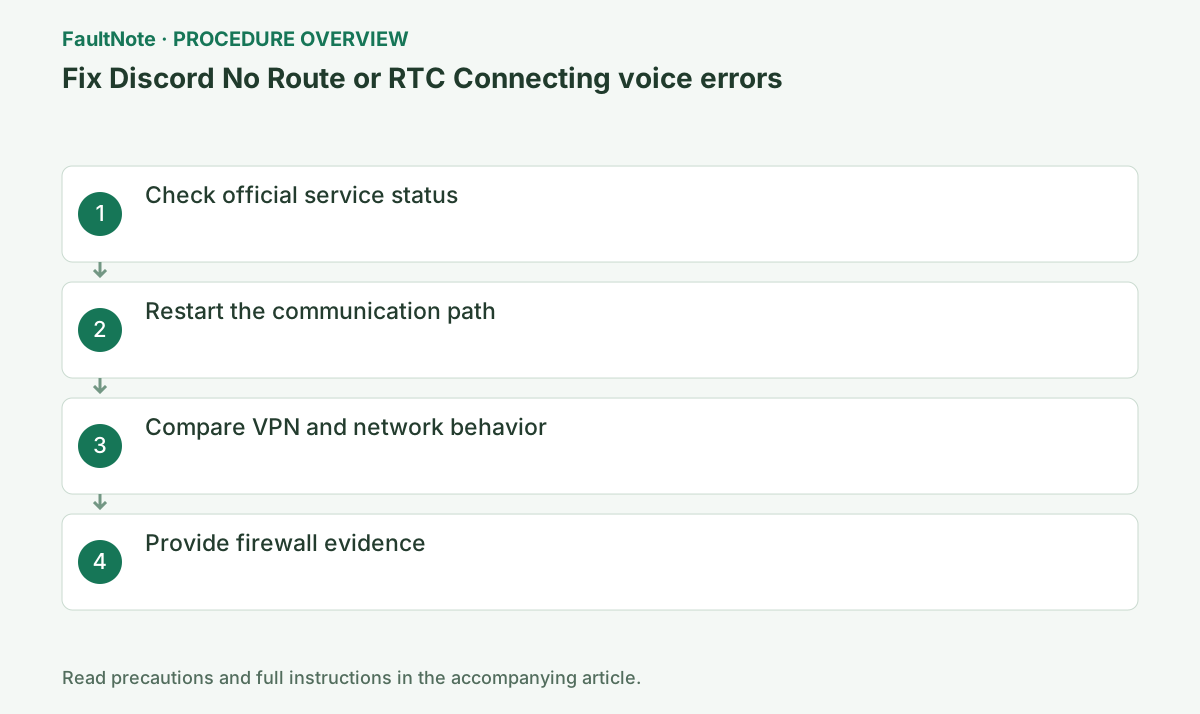
Check discordstatus.com for Voice or regional incidents. If timing matches, preserve local settings and wait for recovery.
Compare Waiting for Voice Server and similar states with Discord Status and time. Local DNS changes cannot fix an official outage.
Record the connection state above the voice-channel name, then open the gear > Voice & Video. No Route and RTC Connecting represent different connection stages.
Check incident scope and timing. If everyone fails, consult recovery information before resetting devices. Normal status does not exclude individual routing failures or prove user settings are responsible.
Official links for this step
- Official Discord troubleshooting
Check the official page for exact setting names, limitations, and updated decision paths.
- Official Discord troubleshooting
Quit Discord, then restart the computer, router, and modem. On shared or managed networks, ask the administrator before restarting equipment.
At home, wait for modem link before starting router and PC. Users should not restart school or company network equipment.
Router restarts interrupt other users. Record device and channel comparisons first, coordinate shared-network impact, and alter one condition at a time.
Retry with an optional VPN or proxy disconnected, and test an approved alternate network if available. A network-dependent result isolates the route.
An alternate network is a diagnostic comparison. If mobile works, investigate UDP or VPN restrictions on the original network.
Another connection working does not identify DNS alone. Check traffic permissions, VPN, and network rules within permitted boundaries and report timing and call scope to the administrator.
Update Discord and check OS or security-software allow rules. If unresolved, send Discord Support the error state, ISP, region, and timestamp.
Record error name, channel, server region, and time; the state identifies the connection stage.
Official links for this step
- Official Discord download
Official Discord download for an update or reinstall.
- Official Discord download
If text works but voice reports No Route, only the chat connection has been demonstrated. Check whether other people in the same channel also fail or whether the problem affects only you.
Compare another permitted voice channel or call and record whether one server is affected. School or workplace networks may restrict voice traffic; ask the administrator about required connectivity instead of bypassing restrictions.
Discord's guidance requires a VPN that supports UDP. If a comparison without a VPN is permitted on your personal connection, record the result. Do not disconnect a required work VPN during a meeting without authorization.
If a different connection improves voice, check whether returning to the original reproduces it. Record time, connection, VPN state, and channel to distinguish a route difference from coincidental recovery.
Check Discord's allowed status and managed network rules rather than permanently disabling the firewall. For a single affected channel, ask its administrator to inspect region settings before resetting all user settings.
Check the result
- rejoin the same voice channel and confirm several minutes of stable two-way voice and reconnection
- Check adjacent basic functions for side effects from the change.
If the problem continues
- contact Discord Support if multiple networks fail, or the network administrator/ISP if only one does
- When continuing with a workaround, preserve original files or account data separately.
Scope of this guide
Troubleshooting guide — Investigate Discord No Route and RTC Connecting through service status, channel scope, VPN, and connection differences. Separate text from voice connectivity and review managed-network requirements.
Frequently asked questions
Why does text work while voice fails?
Voice uses a separate real-time path that can be affected independently by VPNs and firewalls.
Should I change DNS first?
First check Status, restart, and compare VPN/network behavior. Do not alter managed DNS without approval.
Only I remain at RTC Connecting.
Check the route before microphone sensitivity. Compare another allowed call, VPN state, and permitted connections; detection and connection establishment are separate.
Should I keep restarting the router?
Temporary recovery is not causality. Record conditions, inspect recurring VPN or network issues, coordinate impact on others, and do not combine changes.
Official sources and dates
Source publication or resolution date: Not specified. Sources checked: 2026-10-13. The check date is not the date the problem first occurred. Interface labels can vary between versions and display languages.