Hibernate is missing from the power menu
What to do first
Hibernate is missing from the power menu. Hibernation may be disabled, free space may be insufficient for hiberfil.sys, or firmware/drivers may restrict available sleep states. Record the current state before changing it, use only the supported Windows path described below, and verify the same operation again after any required restart.
This is a general troubleshooting guide, not an announcement of a current outage.
Affected products and symptoms
- Product
- Windows power management
- Versions and conditions
- Windows 11 (confirm the edition and hardware requirements for the feature)
- Error codes and identifiers
- powercfg
Symptoms
- Hibernate is missing from the power menu.
- The same condition can persist after a retry or restart.
Causes and conditions
Hibernation may be disabled, free space may be insufficient for hiberfil.sys, or firmware/drivers may restrict available sleep states.
Before you start
- Save open documents and allow time for a Windows restart if required.
- Run administrative actions only on a personally managed PC or with administrator approval.
- Save the diagnostic command output so the before and after states can be compared.
Precautions
- Do not bulk-delete registry entries, system folders, credentials, or storage metadata.
- Do not run unofficial scripts or unknown drivers with administrator rights.
Tools and official pages used in this guide
Check the official requirements, interface names, and limitations for this step.
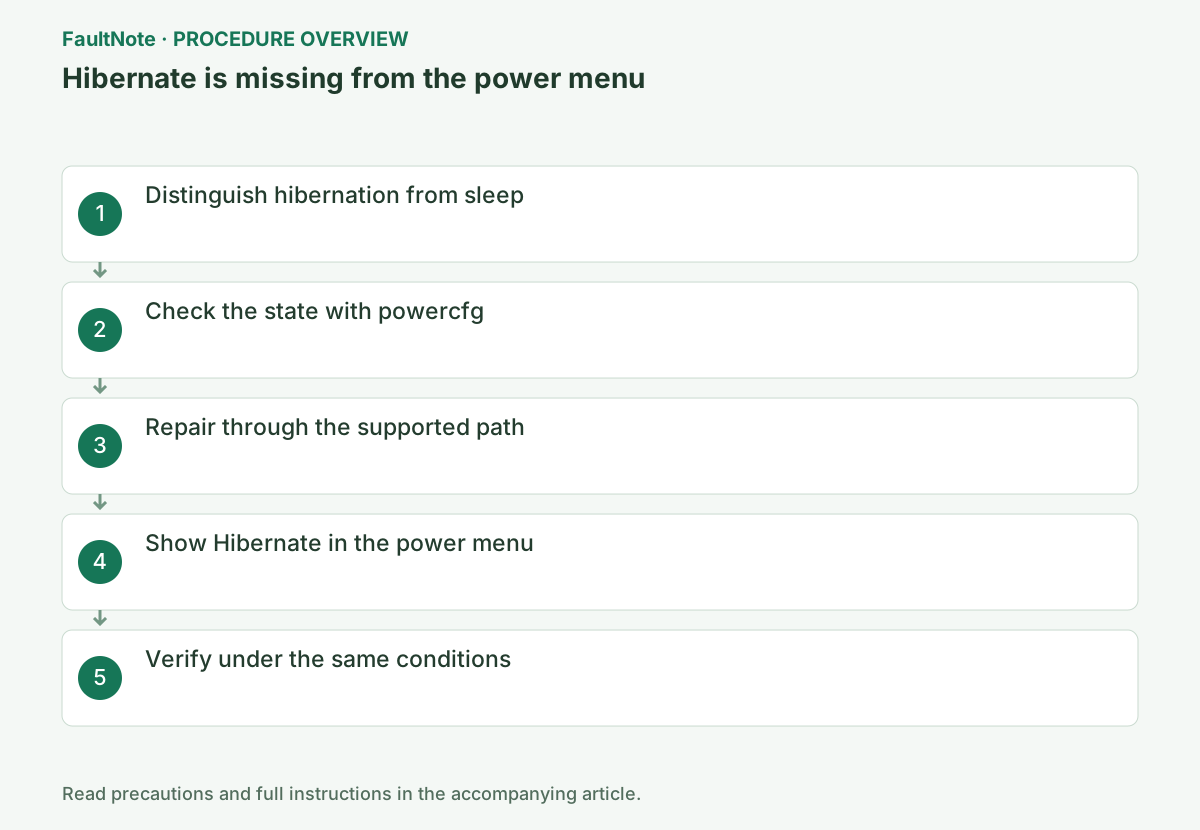
Step-by-step instructions
Hibernation saves memory contents to the system drive before powering down. Separate a hidden Start > Power entry from a state reported as unavailable by powercfg. Check free space on the system drive as well.
Distinguish a missing menu entry, unavailable power state, failed hibernation and failed restoration. Record the selected action rather than treating sleep as hibernation. Closing a laptop lid can use a separate configured action and does not verify the Hibernate menu.
Read powercfg /a for hibernation availability and the reason for unavailability. Distinguish a disabled feature from an available feature missing its menu checkbox. Fast Startup availability alone does not prove that the Hibernate menu action is available.
In an elevated terminal, check the available sleep states and the reason hibernation is unavailable.
Windows lists available sleep states and reasons for unavailable states. If hardware or firmware blocks hibernation, do not keep changing only the power-menu setting.
Run powercfg /a in elevated Command Prompt and check whether Hibernate appears under available sleep states. If the reason cites firmware or policy, merely adding the menu item will not fix it.
Save the full powercfg /a output including reasons. Confirm successful elevated enablement and investigate stated firmware, configuration or policy restrictions instead of repeating it. Fast Startup availability with a reduced file does not establish full hibernation. Record current settings and free system-drive space before changes.
powercfg /aIf hibernation is merely disabled, enable it with powercfg, then open Control Panel > Power Options > Choose what the power buttons do and make Hibernate visible.
Once available, check the Hibernate display option in power-button settings using authorized privileges. Discuss settings reverted by policy with the administrator. Do not manually delete Windows-managed hiberfil.sys because it is large. Consider Hibernate and Fast Startup requirements before choosing to disable the feature for space.
powercfg /hibernate onOfficial links for this step
- Powercfg command-line options
Check the official requirements, interface names, and limitations for this step.
- Powercfg command-line options
Under Choose what the power buttons do, select Change settings that are currently unavailable, enable Hibernate under Shutdown settings and save. If powercfg /a reports a hardware or other restriction, repeatedly changing the menu setting will not resolve it.
A reduced hibernation file supports Fast Startup rather than full hibernation. Review the documented powercfg requirements before changing its type. Check free space on the system drive and do not manually delete hiberfil.sys through Explorer.
Run powercfg /a and repeat the original operation once under the same conditions. If it succeeds, verify again after a restart and record the setting that changed.
Windows lists available sleep states and reasons for unavailable states. If hardware or firmware blocks hibernation, do not keep changing only the power-menu setting.
Save important work and use a small disposable test application. Explicitly select Hibernate and check the same account and application after resume. Black screens or restarts are separate from fixing menu visibility. Record power source, connected devices, build and times, restore unhelpful settings and avoid unrelated firmware or driver changes.
powercfg /a
Check the result
- After saving work, Hibernate resumes to the previously opened test application
- The verification command reports the expected enabled, healthy, or connected state.
- The result remains correct after a Windows restart and no new matching critical event appears.
If the problem continues
- For firmware or policy restrictions, consult the responsible administrator
- If hardware requirements, organization policy, or server settings are responsible, ask the owner to make the change instead of bypassing it on the client.
Scope of this guide
Troubleshooting guide — Restore the feature so it starts, connects, or completes normally and passes the same verification after a Windows restart.
Frequently asked questions
Does enabling hibernation consume disk space?
Yes. Windows creates hiberfil.sys on the system drive, so ensure sufficient free space first.
What if powercfg /a says firmware does not support it?
Windows settings cannot add firmware support. Check the PC manufacturer's UEFI and driver guidance.
Does a successful lid-close resume verify hibernation?
The lid action may be configured as sleep. Explicitly select Hibernate, verify restoration of the test application and record powercfg /a availability separately.
Official sources and dates
Source publication or resolution date: Not specified. Sources checked: 2026-10-13. The check date is not the date the problem first occurred. Interface labels can vary between versions and display languages.
Related troubleshooting guides
Windows errors and troubleshooting →