Fix Thunderbird when receiving works but sending mail fails
What to do first
When Thunderbird receives but cannot send, inspect SMTP errors, provider settings, sender association, authentication, and connectivity. Separate sending from saving the sent copy and verify with a small test.
This is a general troubleshooting guide, not an announcement of a current outage.
Affected products and symptoms
- Product
- Mozilla Thunderbird
- Versions and conditions
- Thunderbird Desktop on Windows, macOS, and Linux
- Error codes and identifiers
- SMTP
Symptoms
- Mail downloads, but sending fails
- SMTP authentication, connection refused, or timeout appears
Causes and conditions
Check the sender-to-SMTP association, port, encryption, authentication, saved credentials, and VPN or security filtering in that order.
Before you start
- Record the complete sending error, time, and recipient
- Open the mail provider’s official SMTP page and confirm webmail access
Precautions
- Immediately re-enable security software after a brief diagnostic test
- Never post SMTP passwords or full account details publicly
Tools and official pages used in this guide
Check the official page for exact setting names, limitations, and updated decision paths.
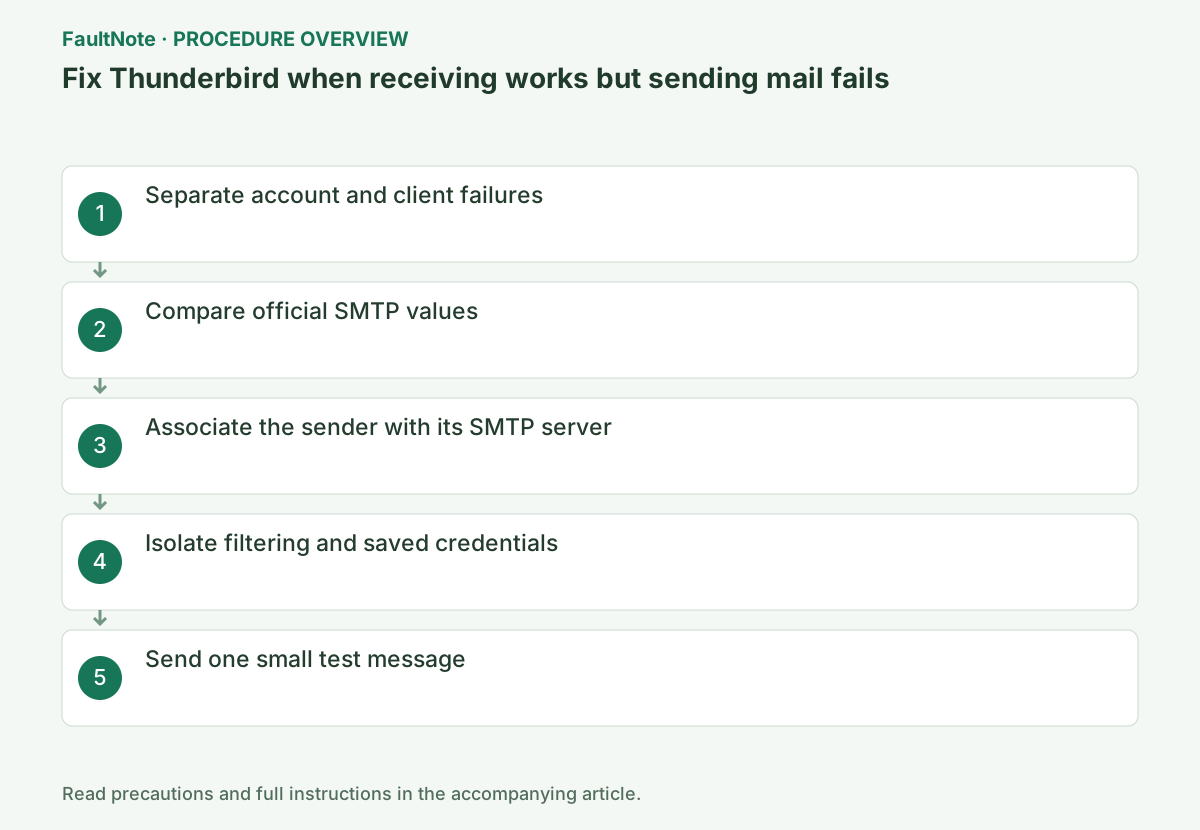
Step-by-step instructions
Send to the same recipient from webmail to rule out an account suspension or recipient rejection. Follow company policy before testing another network.
Receiving success does not validate SMTP because incoming and outgoing servers have separate settings. Preserve incoming settings and local messages; record the server and error number.
Before closing the send error, record server, number, and response. Open Menu > Account Settings > Outgoing Server (SMTP).
If only one of two accounts fails, inspect its SMTP and sender rather than changing both incoming configurations. Authentication, timeout, and recipient rejection require different next checks; keep the full error and compare attachment-free mail to the same recipient.
Open Menu > Account Settings > Outgoing Server (SMTP), then compare hostname, port, connection security, authentication method, and username with the provider documentation.
Do not guess common ports. Port 587 with STARTTLS and 465 with SSL/TLS are different combinations, and servers limited to obsolete TLS can be rejected by current Thunderbird.
Record server, port, security, authentication, and username before changes. Correct ports still need matching encryption. Follow the provider's Thunderbird instructions for OAuth2 or app passwords instead of arbitrarily switching to a normal password.
In Account Settings, select the mail account and check Outgoing Server (SMTP) at the bottom. It must point to the server authorized for that address.
With multiple accounts, another provider’s SMTP server may authenticate but reject the From address. Select the right entry instead of deleting all existing entries.
For similarly named SMTP entries, inspect host and username. Check identity associations too; authentication does not guarantee a sender is authorized. Ask the provider about sender or relay rejection.
After an update, check whether a VPN, proxy, antivirus mail scanner, or firewall stopped trusting the new Thunderbird build. Allow it using administrator or vendor guidance.
If configuration is correct but authentication fails, open Settings > Privacy & Security > Saved Passwords, remove only the relevant SMTP credential, and enter the correct password on the next send.
Send one short, attachment-free message to yourself. Confirm it in Sent and in webmail.
Repeated retries can trigger account lockout. Stop after continuing authentication failures and ask the provider whether 2FA or an app password is required.
Official links for this step
- Official Mozilla Thunderbird troubleshooting
Check the official page for exact setting names, limitations, and updated decision paths.
- Official Mozilla Thunderbird troubleshooting
A failure copying to Sent does not necessarily mean delivery failed. Check web Sent and recipient arrival before resending, comparing subject and arrival time to avoid duplicates.
If delivery works but saving fails, inspect Copies & Folders and the selected Sent folder's sync state. Repeatedly removing SMTP credentials does not address a destination mismatch.
After a small test succeeds, compare one permitted attachment. Attachment-only failure warrants provider size or format checks. Do not transmit confidential attachments for diagnosis; redact addresses and subjects in shared records.
Check the result
- An attachment-free test reaches the mailbox and appears in Sent
- Sending from the same identity still works after restart
If the problem continues
- Use webmail and give the provider the full error text
- Ask the organization administrator about permitted SMTP authentication and device rules
Scope of this guide
Troubleshooting guide — Follow Mozilla’s official sending guide: capture the error, then isolate SMTP configuration, account association, network filtering, and credentials.
Frequently asked questions
If receiving works, must the password be correct?
Not necessarily. SMTP can use a separate stored credential and authentication method.
Should I switch to port 25?
No. ISPs commonly block it and its encryption pairing differs. Use the provider’s documented port, commonly 587 or 465.
Do authentication errors and timeouts need the same fix?
Authentication points toward credentials and method; timeouts call for route and server-reachability checks. Read the full response and provider values before repeated password attempts.
Should I resend after a Sent-copy failure?
Delivery may already have succeeded. Verify arrival and web mail first. If delivered, inspect the Sent destination and avoid duplicates; if not, investigate the SMTP response.
Official sources and dates
Source publication or resolution date: Not specified. Sources checked: 2026-10-13. The check date is not the date the problem first occurred. Interface labels can vary between versions and display languages.