Troubleshoot Cloud conflict in Steam Client / Steam Cloud
What to do first
Preserve local candidates from both devices and any obtainable cloud candidate separately. Choose from timestamps and actual progress, then verify content and synchronization.
This is a general troubleshooting guide, not an announcement of a current outage.
Affected products and symptoms
- Product
- Steam Client / Steam Cloud
- Versions and conditions
- Steamsupported Windows / macOS / Linux
- Error codes and identifiers
- Cloud conflict
Symptoms
- The operation fails with Cloud conflict.
- The same failure is reproducible in Steam Client / Steam Cloud.
Causes and conditions
Local and cloud files were changed without synchronization, so Steam cannot automatically choose a version.
Before you start
- Exit the game and launcher normally; record the account, title, complete error, and occurrence time.
- Before changing local saves or settings, find the developer-documented save location and copy it to another folder.
Precautions
- Do not confirm overwriting before preserving device candidates and any obtainable cloud candidate
- Do not combine multi-file saves without documented support
Tools and official pages used in this guide
Preserve only files available to the legitimate account. Availability of all files or historical versions is not guaranteed.
Step-by-step instructions
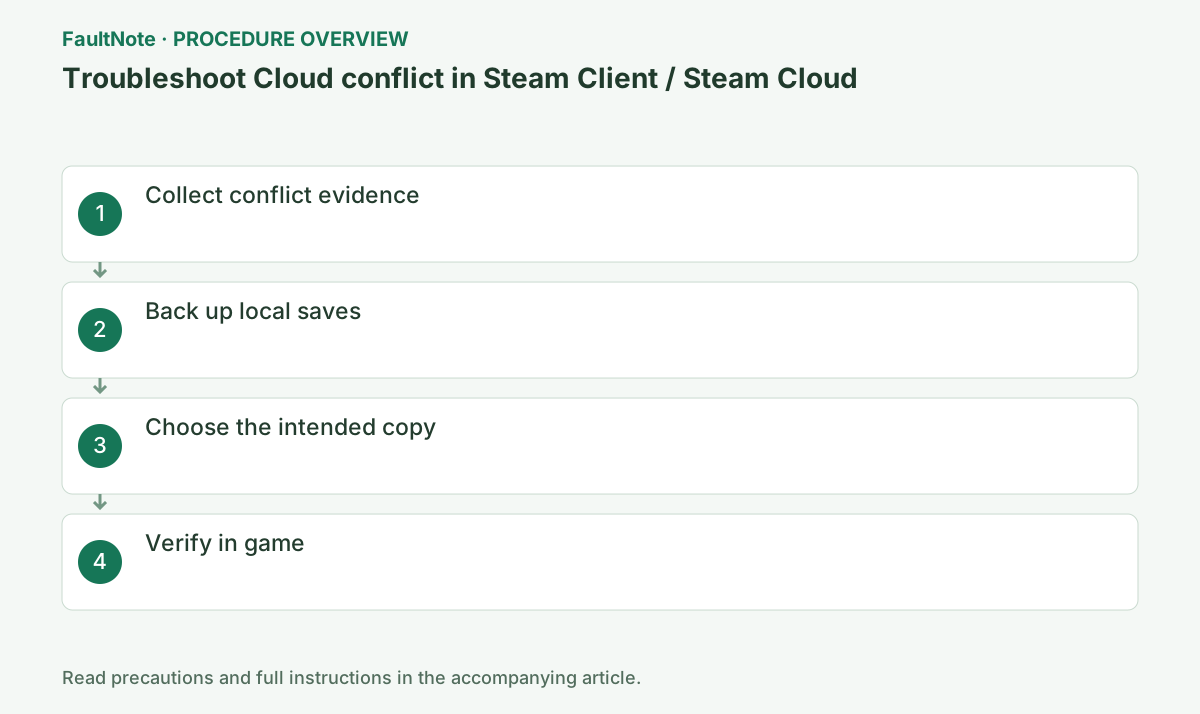
Do not choose a copy yet. Close the game normally on both devices and note the last device played, progress, exit time and offline sessions. Exit Steam on the other device to prevent it from advancing synchronization. Record the local and cloud timestamps and sizes; a newer timestamp alone is not a decision.
Use developer documentation to locate actual saves. With Steam and the game closed, copy candidates from both devices into separate non-synced folders named for device and capture time. userdata includes account/appID data, but is not the exclusive save location for every game. Copy rather than move or overwrite, and compare file counts and sizes with the originals.
If another device retains the cloud version locally, back it up without launching the game. If the account Steam Remote Storage page offers the game files, download them into a separate cloud-candidate folder and record game and capture time. Availability of every file or previous version is not guaranteed. If the cloud copy cannot be preserved and the correct candidate is unclear, defer the overwrite decision and ask the developer.
Official links for this step
- Steam account Remote Storage
Preserve only files available to the legitimate account. Availability of all files or historical versions is not guaranteed.
- Steam account Remote Storage
Make a table of candidate, timestamp, size, device and remembered progress. Progress made offline on device A may be absent from a cloud candidate despite an apparently newer date. Keep related save files together rather than mixing individual files. Do not confirm both candidates sequentially just to test them: the second synchronization may overwrite the first.
Once the desired candidate is identified, confirm both backup folders remain accessible and distinguishable. Open Steam only on the selected device and read which choice uploads or downloads before confirming. Labels can vary; do not rely on button position. Wait for synchronization before launching the game or Steam on the other device.
Check slot, progress and play time in the game. If the state is older than expected, do not create further progress; preserve the current state separately and exit. Some games autosave on launch, so do not open candidates before backup. Restore according to developer save/sync guidance rather than replacing the entire userdata tree on both devices.
After confirming progress, exit through the game menu and wait for Steam synchronization. On the next device, open Steam and let it sync before launching. If conflict returns, preserve the new screen and candidates instead of automatically choosing newer. Steam Support cannot be relied upon to recover lost saves; retain backups until normal transfers have been verified.
Check the result
- Both candidates remain backed up and the intended progress is confirmed
- Synchronization completes after normal game exit
- The next device shows the same progress after synchronization
If the problem continues
- Defer overwriting if desired progress is unclear and give the developer separately preserved candidates and progress notes.
Scope of this guide
Troubleshooting guide — A general diagnostic guide based on official support. It does not claim a current incident or a version-specific fix.
Frequently asked questions
Is the newest timestamp always the safe choice?
It is evidence, not a guarantee. Compare offline progress, device time and the last successful session. Preserve both candidates before confirming a choice.
Can both progress versions be merged?
Steam Cloud is not a general save-merging tool. Mixing related files can create inconsistency. Keep candidates separate unless the developer documents an import method.
What if the cloud candidate cannot be downloaded?
Check other devices and developer save locations. Defer overwriting when the desired state is unclear. Remote Storage does not guarantee access to every file or historical version.
Can I recover after choosing the wrong version?
Preserved candidates may allow recovery using game-specific instructions. Stop additional play and sync, retain current and backed-up states and ask the developer. Recovery without backups is not guaranteed.
Official sources and dates
Source publication or resolution date: Not specified. Sources checked: 2026-10-13. The check date is not the date the problem first occurred. Interface labels can vary between versions and display languages.