Shared computers do not appear under Network in File Explorer
What to do first
Shared computers do not appear under Network in File Explorer. The network profile may be Public, network discovery may be disabled, or Function Discovery services may be stopped. Record the current state before changing it, use only the supported Windows path described below, and verify the same operation again after any required restart.
This is a general troubleshooting guide, not an announcement of a current outage.
Affected products and symptoms
- Product
- Windows network discovery
- Versions and conditions
- Windows 11 (confirm the edition and hardware requirements for the feature)
- Error codes and identifiers
- SMB
Symptoms
- Shared computers do not appear under Network in File Explorer.
- The same condition can persist after a retry or restart.
Causes and conditions
The network profile may be Public, network discovery may be disabled, or Function Discovery services may be stopped.
Before you start
- Save open documents and allow time for a Windows restart if required.
- Run administrative actions only on a personally managed PC or with administrator approval.
- Save the diagnostic command output so the before and after states can be compared.
Precautions
- Do not bulk-delete registry entries, system folders, credentials, or storage metadata.
- Do not run unofficial scripts or unknown drivers with administrator rights.
Tools and official pages used in this guide
Check the official requirements, interface names, and limitations for this step.
Step-by-step instructions
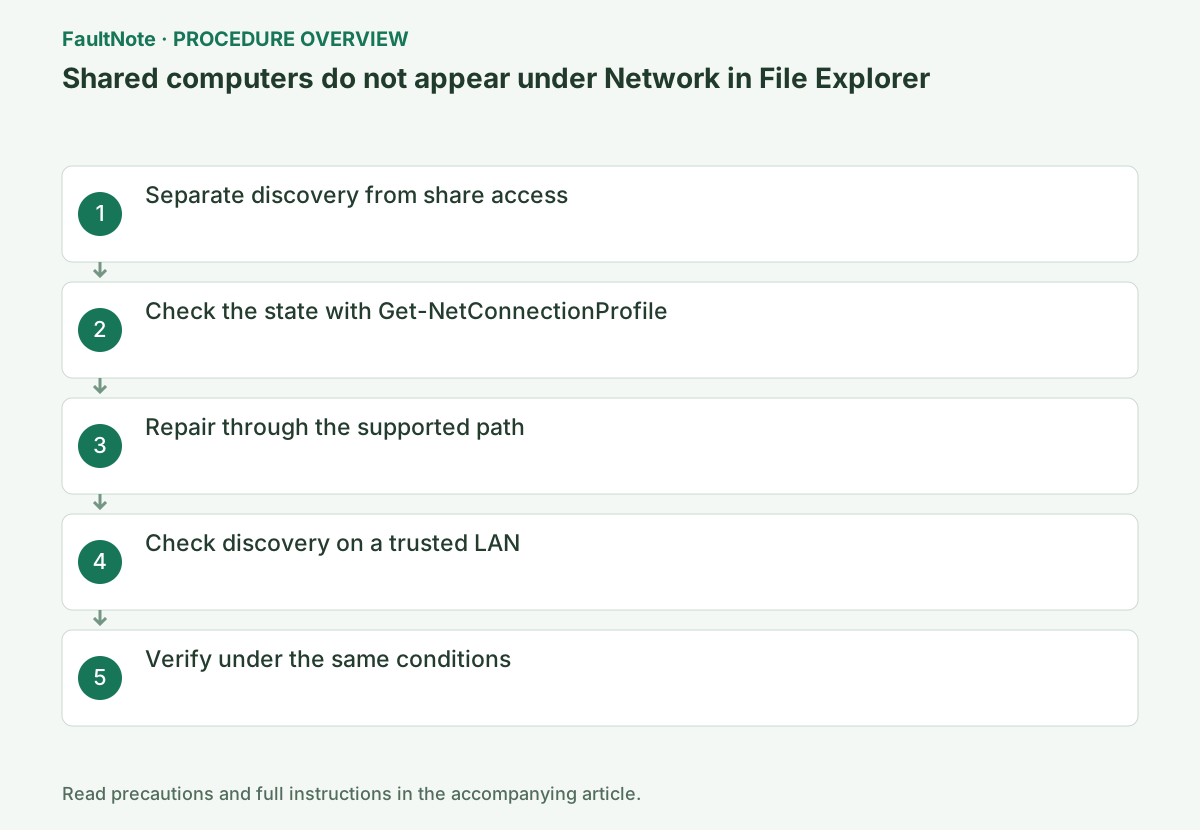
Enter a known UNC path in File Explorer. If the share opens, SMB access works and the steps below concern discovery in the Network list. If it does not open, check the path, network and credentials first.
If a NAS is absent from the list but a saved shortcut opens, file connectivity may already work. Confirm the shortcut UNC path and enter it directly in Explorer. Use the current confirmed server name rather than relying on old screenshots when distinguishing discovery from access.
Enter the confirmed share UNC path into File Explorer. If it opens directly, separate file access from appearance in the network list. If it does not open, investigate the destination name and credentials before repeatedly changing discovery services.
Confirm that this is a trusted LAN and check whether the active network profile is Private rather than Public.
Profiles apply to individual connections. On a PC with Wi-Fi and Ethernet, identify the route used for the share. Review private settings only on trusted or administrator-designated networks. Do not expose sharing on public Wi-Fi for discovery. If managed settings revert, confirm policy instead of repeatedly overriding them.
Get-NetConnectionProfileOpen Settings > Network & internet > Advanced network settings > Advanced sharing settings and enable Network discovery for Private networks. Check Function Discovery Provider Host and Function Discovery Resource Publication if discovery still fails.
Status shows Running or Stopped. Stopped alone does not prove failure; check whether it starts on demand or reports a start error.
Record service names and states before considering changes. Discovery cannot repair name resolution or share permissions. Direct access success does not justify enabling old SMB compatibility protocols merely to populate the list. Check the device manufacturer access method and target only the necessary host and port in diagnostics.
Get-Service FDResPub,FDPHostOfficial links for this step
- File sharing over a network in Windows
Check the official requirements, interface names, and limitations for this step.
- File sharing over a network in Windows
If the connection is Public, confirm it is your trusted home or managed LAN before changing its profile to Private in Settings. Do not change public Wi-Fi to Private. After enabling discovery, reopen File Explorer and check the Network list and UNC access separately.
Check the current network profile. Review private-network discovery when needed on a trusted LAN, without converting hotel or public Wi-Fi merely to make shares visible. Keep the confirmed UNC path; waiting for a discovery list entry is not the sole access test.
Replace SERVER_NAME with the actual value for your system before using this example.
Run Test-NetConnection <server> -Port 445 and repeat the original operation once under the same conditions. If it succeeds, verify again after a restart and record the setting that changed.
TcpTestSucceeded=True confirms port reachability. If False, check the host name, VPN, destination listener, and firewall before changing credentials.
Run Test-NetConnection in PowerShell on the Windows client and replace SERVER_NAME with the file server DNS name or IP. TcpTestSucceeded=True means SMB is reachable, separating discovery-list display from share access.
Record direct access, required folder readability and discovery appearance separately. A confirmed UNC shortcut may satisfy file access without resolving discovery. For direct failure, save the error and identify resolution, connectivity or authentication stage. Restore unhelpful network changes and give the administrator the confirmed destination and results.
Test-NetConnection SERVER_NAME -Port 445
Check the result
- The confirmed UNC path opens the required share
- The verification command reports the expected enabled, healthy, or connected state.
- The result remains correct after a Windows restart and no new matching critical event appears.
If the problem continues
- If direct access fails too, record that connection error instead of treating it solely as discovery
- If hardware requirements, organization policy, or server settings are responsible, ask the owner to make the change instead of bypassing it on the client.
Scope of this guide
Troubleshooting guide — Restore the feature so it starts, connects, or completes normally and passes the same verification after a Windows restart.
Frequently asked questions
Should I enable discovery on a Public network?
No. It increases device exposure. Enable it only after confirming that a trusted LAN uses the Private profile.
UNC access works although the device is absent. Is SMB broken?
No. Discovery and SMB connectivity are separate; use the correct UNC path if the share itself works.
Can I use a shortcut while the device remains undiscovered?
A shortcut to an administrator-confirmed UNC path can be an access method. It does not establish that discovery is fixed; follow administrator guidance for destination changes and permissions.
Official sources and dates
Source publication or resolution date: Not specified. Sources checked: 2026-10-13. The check date is not the date the problem first occurred. Interface labels can vary between versions and display languages.
Related troubleshooting guides
Windows errors and troubleshooting →
- Laptop is slow only on battery: check the power mode, energy saver and the maker's cooling mode in that order
- A driver can't load on this device: what memory integrity is blocking, and the choices that leaves
- Printer outputs blank pages after an ink or toner change: packing material, seating, nozzle check and the new-supply test
- A print job remains stuck on Deleting