Fix OneDrive error 0x8007016a
What to do first
Investigate OneDrive 0x8007016a through original preservation, updates, sign-in, Files On-Demand, and post-reset sync. Avoid overlapping moves or deletion and record account-specific state.
This is a general troubleshooting guide, not an announcement of a current outage.
Affected products and symptoms
- Product
- Microsoft OneDrive
- Versions and conditions
- OneDrive for Windows
- Error codes and identifiers
- 0x8007016a
Symptoms
- 0x8007016a appears on move, delete, or open
- Files On-Demand is unavailable
Causes and conditions
Check Windows updates, sign-in, Files On-Demand, and then OneDrive reset.
Before you start
- Before changes, record and preserve the web original, affected path, and pending sync count.
- Change one item at a time and record the original symptom after each stage.
- Record the failed operation, full code, source and destination, and account. Preserve available unsynced edits outside OneDrive, compare web timestamps, and note folder selections and Files On-Demand state before reset.
Precautions
- Do not bulk-delete unrelated settings or data.
- Exclude personal data and credentials; share only the necessary parts of the web original, affected path, and pending sync count.
Tools and official pages used in this guide
Check the official page for exact setting names, limitations, and updated decision paths.
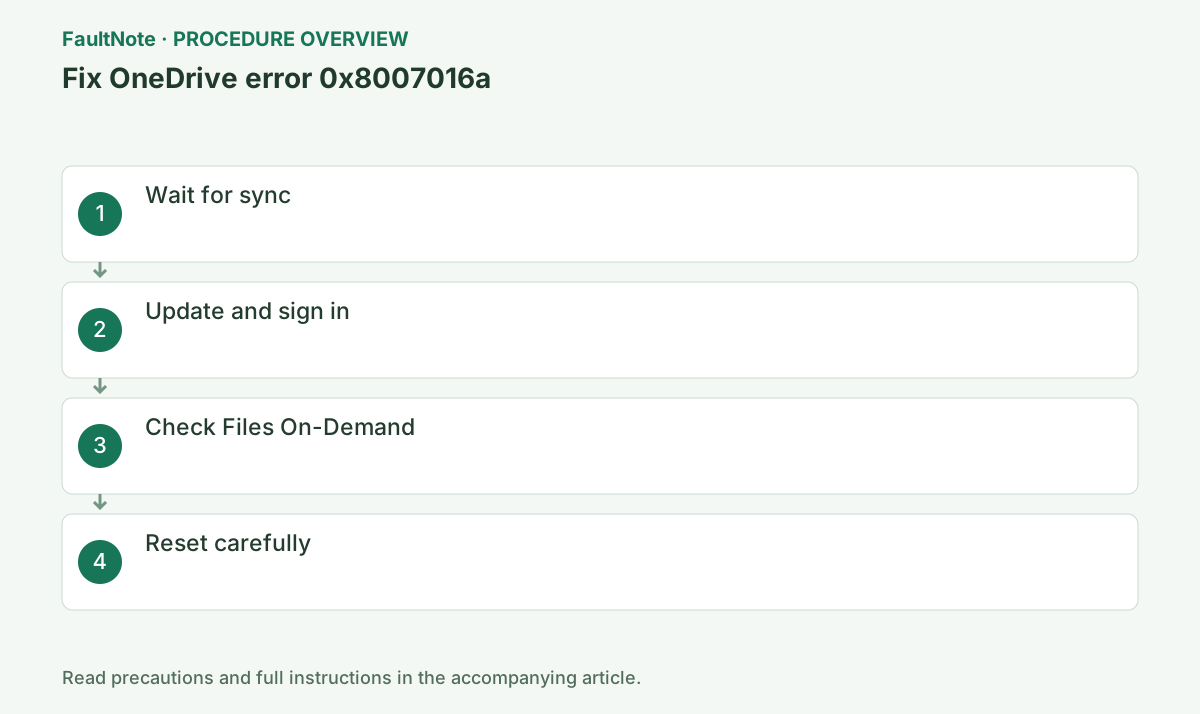
Step-by-step instructions
Inspect cloud-icon errors and pending items.
Do not continue bulk moves during sync.
Determine whether 0x8007016a affects one item or all of OneDrive. If another small online-only file opens, suspect the path or a sync conflict.
Before closing 0x8007016a, record the path and open the notification-area cloud icon. Do not repeat moves while sync is pending or an item error remains.
Record whether opening, moving, or deleting failed. Inspect both move locations before assuming loss, copy available local edits outside sync, and compare web timestamps before changing settings.
Run Windows Update, restart, and verify the correct OneDrive account.
Also confirm the cloud original on the web.
Find the OneDrive version under cloud icon > Help & Settings > Settings > About and compare it with Microsoft’s current release.
Check storage and retention scope before changing Files On-Demand. Labels can change, but the goal is to inspect cloud-file behavior. Compare one affected account and item instead of altering every large folder.
Official links for this step
- Official Microsoft OneDrive troubleshooting
Check the official page for exact setting names, limitations, and updated decision paths.
- Official Microsoft OneDrive troubleshooting
Open OneDrive Settings > Sync and backup > Advanced settings.
If policy-controlled, contact the administrator.
Reset does not necessarily redownload everything, but reconciliation takes time. Do not move the same file during it.
Avoid overlapping file operations during post-reset scanning and sync. Start OneDrive, inspect prompts and errors, restore needed selective-sync folders, and retest once activity settles.
Use Microsoft’s official OneDrive reset procedure, then restore Files On-Demand after resync.
Wait for the sync relationship to rebuild.
Free up disk space and Download all files have opposite effects. Check required capacity before the latter.
Because 0x8007016a occurs while processing cloud files, check the same web folder before repeatedly deleting or moving items. Record whether the original exists, the account, and disk space. Copy any local edits not yet synchronized to another location.
After resolving a pause or sign-in prompt in the tray, download and open one small file. Even if a folder-wide move failed, starting with one item distinguishes a particular item from a broader synchronization failure.
Microsoft's procedure covers Windows updates, OneDrive sign-in, Files On-Demand settings, and a reset. If your version uses different labels, consult its current Files On-Demand controls rather than searching only for an older checkbox name.
After a reset, restart OneDrive and verify the account and selected folders. Recheck any previous selective-sync choices. A tray icon disappearing momentarily is not completion; wait for synchronization to settle.
Restore the intended Files On-Demand configuration, then test downloading, opening, and the originally failing move in order. If the error changes, record the new code instead of continuing remedies for the old one.
Check the result
- confirm the item reaches a synced icon and open, rename, and move each succeed once
- Check adjacent basic functions for side effects from the change.
If the problem continues
- work with the file on the web and give Microsoft or the administrator error 0x8007016a and the OneDrive version
- When continuing with a workaround, preserve original files or account data separately.
Scope of this guide
Troubleshooting guide — Investigate OneDrive 0x8007016a through original preservation, updates, sign-in, Files On-Demand, and post-reset sync. Avoid overlapping moves or deletion and record account-specific state.
Frequently asked questions
Will data be deleted?
Verify the web copy first and avoid local moves until sync completes.
Can I retry immediately?
Wait for resync and stable status icons.
Is a long synchronization after reset a failure?
Time depends on file count and state. Inspect progress and errors rather than duration alone. Preserve unsynced edits and avoid consecutive resets that restart work.
Can I delete sync files to free space?
Deletion can propagate to the web and other devices. Freeing local space differs from deleting originals. Verify retention and preserve needed data before any broad removal.
Official sources and dates
Source publication or resolution date: Not specified. Sources checked: 2026-10-13. The check date is not the date the problem first occurred. Interface labels can vary between versions and display languages.