Troubleshoot OEM warning in Intel Driver & Support Assistant / Intel Graphics
What to do first
Record OEM warning, verify the affected product and environment, correct the confirmed prerequisite, and retry once under the same conditions.
This is a general troubleshooting guide, not an announcement of a current outage.
Affected products and symptoms
- Product
- Intel Driver & Support Assistant / Intel Graphics
- Versions and conditions
- Windows 10 / 11, OEM PC
- Error codes and identifiers
- OEM warning
Symptoms
- The operation fails with OEM warning.
- The same failure is reproducible in Intel Driver & Support Assistant / Intel Graphics.
Causes and conditions
The official article identifies a product, compatibility, storage, update, network, file, or configuration condition that must be resolved before retrying.
Before you start
- Close applications and record the exact PC or GPU model, Windows build, current driver version, and complete error.
- For a laptop or branded PC, check its model support page and obtain a recovery OEM driver before making changes.
Precautions
- Use signed GPU or PC-maker packages, not unofficial drivers, individual DLL downloads, or registry tools.
- Do not open a laptop or bulk-remove a healthy multi-GPU configuration that includes integrated graphics.
Tools and official pages used in this guide
Official page for this step. Confirm the exact product, operating system, and version requirement before continuing.
Step-by-step instructions
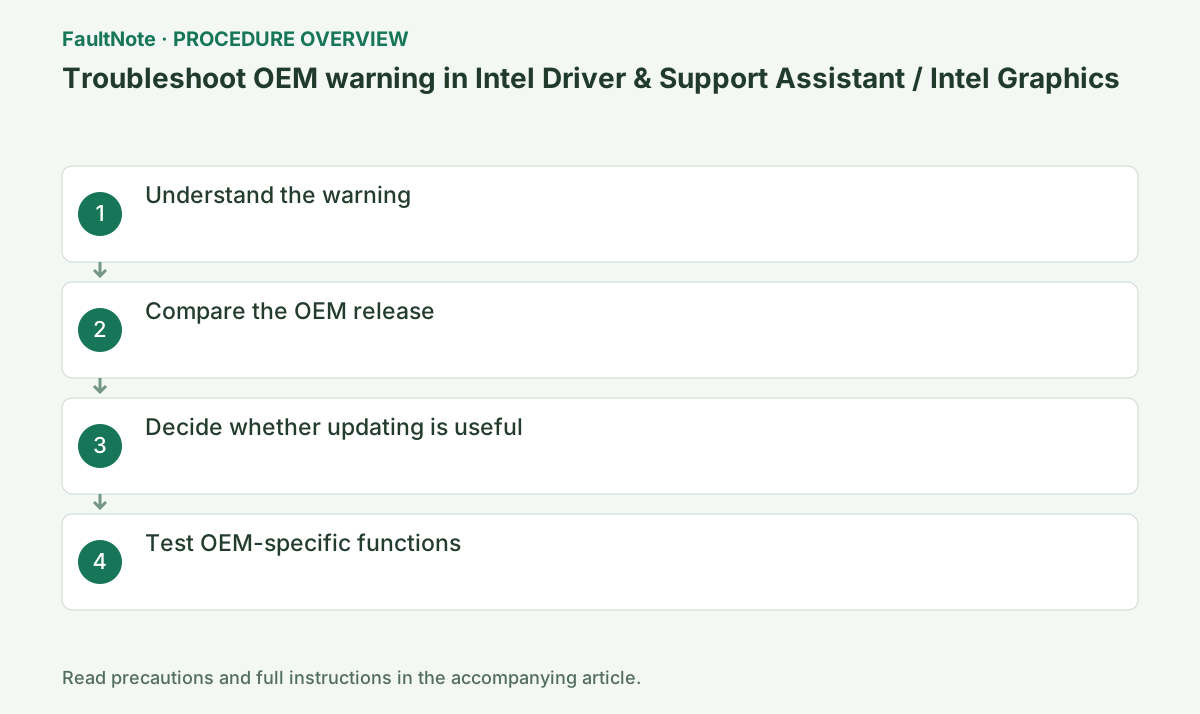
DSA warns that a generic Intel driver may overwrite PC-maker customization. Record PC model, current version, and the symptom you intend to fix.
Record the current version under Device Manager > Display adapters > Intel GPU > Properties > Driver and preserve Hardware Ids from Details.
DSA warns about moving from an OEM customized driver to a generic Intel release. First check the exact PC model support page for an updated OEM driver. Available OEM updates and discontinued OEM updates provide different reasons for considering a generic package.
If choosing generic, verify that its release notes address the needed issue and save an OEM recovery package. The warning alone means neither that updating is mandatory nor that it is forbidden.
Review the model-specific driver and notes. Prefer it where brightness keys, docks, switchable graphics, or power tuning are customized.
Check the PC maker's model page first. Save the OEM installer and record brightness, external display, sleep, and switchable-GPU behavior before testing a generic Intel build.
Official links for this step
- Intel OEM driver warning
Official page for this step. Confirm the exact product, operating system, and version requirement before continuing.
Check before continuingThe official page or signed package for Intel OEM driver warning opens and its product/version conditions match this device.
- Intel OEM driver warning
Record PC model, current OEM version, newest OEM package, proposed Intel version and symptom. For a specific fix, check whether release notes cover that product and issue. Distinguish a newer number from a documented needed fix. Do not guarantee repair of symptoms absent from the notes.
Consider a supported OEM update first. If OEM updates have stopped, verify generic GPU/OS support and retain the old recovery package. An OEM-customization warning differs from an unsupported-product error. If setup cannot proceed, save the later failure message rather than repeatedly accepting the warning.
If the OEM driver is stable and there is no specific fix or security need, you can decline the generic update. Save the OEM package before testing Intel's release.
In Intel setup review the license and choose Begin Installation or the documented clean-install option. Do not power off while the display is reconfigured.
After restart test internal/external displays, brightness, sleep, and video. Roll back or reinstall the OEM package if anything regresses.
After restart verify driver version plus internal/external displays, brightness, and sleep resume. Roll back or reinstall the saved OEM package if model-specific functions regress.
Check before continuingDecision: After restart test internal/external displays, brightness, sleep, and video. Roll back or reinstall the OEM package if anything regresses. After restart verify driver version plus internal/external displays, brightness, and sleep resume. Roll back or reinstall the saved OEM package if model-specific functions regress.
Compare brightness, external displays, sleep resume and display switching under the same conditions. Intel explains that a generic driver is not validated for the specific PC, so boot success is insufficient.
Reinstall the OEM package if new issues appear. If unavailable and rollback is still offered, use that route and retain before/after versions and reproduction conditions.
Check before continuingCompare brightness, external displays, sleep resume and display switching under the same conditions. Intel explains that a generic driver is not validated for the specific PC, so boot success is insufficient.
Record internal display, brightness, external monitor, sleep resume and intended app before update, after update and after OEM restoration. Claim all improved only when all were checked. If the app improves but external output fails, overall compatibility remains incomplete. Test the original wiring and settings.
Use the saved OEM setup when rollback is unavailable. If no OEM package is available, ask the exact model support channel before changes. Report PC model, both versions and failing functions to Intel. Do not infer loss of OEM features merely from the warning; provide actual comparisons.
Check the result
- OEM warning no longer appears and the operation completes.
- The selected version and settings remain after restart.
- A second test shows no new display, input, save, or synchronization problem.
If the problem continues
- Restore reversible settings from the notes and escalate without deleting user data.
- Prefer the PC maker or administrator procedure for OEM drivers and managed networks.
- Protect account names, tokens, and save contents before sharing logs.
Scope of this guide
Troubleshooting guide — A general diagnostic guide based on official support. It does not claim a current incident or a version-specific fix.
Frequently asked questions
Is the OEM warning an error?
No. It asks you to accept the risk of replacing customizations; it does not prove the update is required.
Is a higher Intel version always better?
No. An older OEM build may include model-specific validation and changes.
Does accepting the warning always remove OEM features?
No. But a generic driver is not guaranteed for the individual PC; prepare an OEM recovery package and a feature comparison first.
Can I keep generic drivers if the intended game improves?
Also check required displays, sleep and other functions. If game improvement accompanies OEM regressions, retain restoration results and ask about a supported package.
Official sources and dates
Source publication or resolution date: Not specified. Sources checked: 2026-10-13. The check date is not the date the problem first occurred. Interface labels can vary between versions and display languages.