Safely resolve a merge conflict in GitHub Desktop
What to do first
Review both change intentions, final text, and binary choices. Check Accept Both for duplicates, validate the resulting diff, and preserve work before any abort.
This is a general troubleshooting guide, not an announcement of a current outage.
Affected products and symptoms
- Product
- GitHub Desktop
- Versions and conditions
- GitHub Desktop for Windows and macOS
Symptoms
- GitHub Desktop lists merge conflicts
- Continue merge is unavailable
Causes and conditions
Resolve each file in an editor, remove conflict markers, validate, and continue the merge.
Before you start
- Before changes, record and preserve current branch, merge source, uncommitted diff, and conflict list.
- Change one item at a time and record the original symptom after each stage.
Precautions
- Do not bulk-delete unrelated settings or data.
- Exclude personal data and credentials; share only the necessary parts of current branch, merge source, uncommitted diff, and conflict list.
Tools and official pages used in this guide
Check the official page for exact setting names, limitations, and updated decision paths.
Optional: use your existing text editor if it can edit the conflicted files.
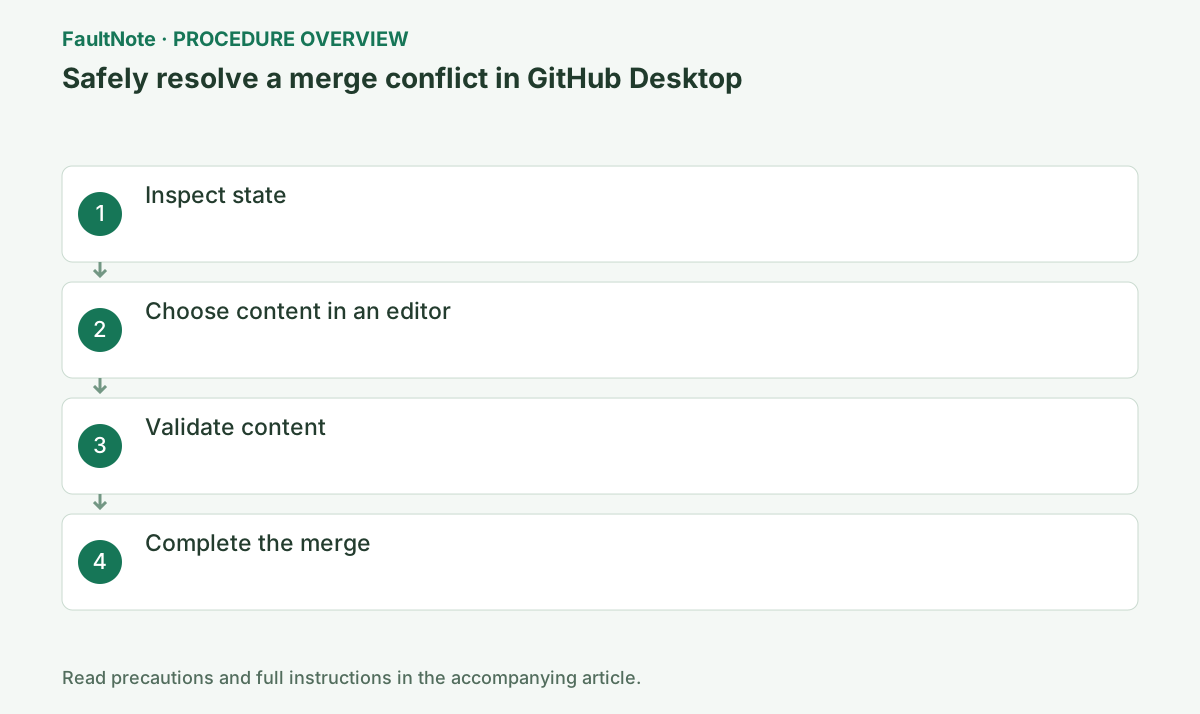
Step-by-step instructions
Confirm Current branch, the merged branch, conflict list, and whether unrelated uncommitted work is present.
Make a separate repository copy first if state is unclear.
Current branch is the merge destination. Read branch names and history before starting so the direction is correct.
Check the destination under Current branch. In Branch > Merge into current branch, reread the source branch name before starting.
Record current and incoming branches and confirm merge direction. Preserve uncommitted edits and distinguish preexisting work from resolution edits for any later abort.
Official links for this step
- GitHub Desktop: syncing and merging branches
Check the official page for exact setting names, limitations, and updated decision paths.
Check before continuingConfirm the destination and source branch names, and preserve unrelated edits before resolving conflicts.
- GitHub Desktop: syncing and merging branches
Open each file in VS Code or another editor and choose Current, Incoming, both, or a manual result.
Remove every <<<<<<<, =======, and >>>>>>> marker from the final content.
VS Code Accept Both concatenates content. Duplicate functions or keys still require semantic editing after marker removal.
Current and Incoming are operation-relative labels, not a freshness ranking. Review both intentions and surrounding references or contradictory settings before selecting content.
Official links for this step
- Visual Studio Code official download
Optional: use your existing text editor if it can edit the conflicted files.
Check before continuingSave each file with all conflict markers removed and no unintended duplicate functions or keys.
- Visual Studio Code official download
Save, then run syntax checks and relevant tests. Check source files as well as generated artifacts.
For binary conflicts, choose the correct whole version instead of text merging.
A resolved checkbox does not prove valid syntax. Run project tests, lint, and build.
Inspect History and the final diff after completion. Run required checks before Push, including related settings outside conflicts. Marker removal alone is not completion; fix and validate resulting content.
Check before continuingRun the project’s tests and build; resolve syntax errors before continuing the merge.
Return to Desktop, ensure every conflict is resolved, and select Continue merge.
Review history and the complete diff for accidental deletions before pushing.
Continue merge creates local history. Review History and the diff before Push so mistakes are not published.
Check before continuingConfirm the merge commit and intended changes in History before selecting Push.
Review the intent of both the current branch and incoming change before choosing a block. If a configuration adjustment overlaps a feature addition, selecting either entire block may discard the other change's purpose.
Accept Both can retain duplicate lines, definitions, or contradictory settings. After removing markers, inspect surrounding functions, JSON commas, and duplicate imports. A cleared conflict indicator is not proof that the implementation works.
Images and other binary files cannot be merged line by line. Agree on the intended version with its author and preserve both under separate names when necessary. Open the selected file in its actual application.
Review the final diff for unintended deletions or unrelated edits and run the build or checks needed for the affected behavior. Validate the resulting combined content, not merely the fact that a new commit exists.
If you must abort, preserve current uncommitted edits before using Desktop's offered Abort action. Do not substitute reset --hard or a force push for conflict resolution, as these can discard other work.
Check the result
- after tests pass, inspect merge parents and Files changed in History
- Check adjacent basic functions for side effects from the change.
If the problem continues
- abort an unclear merge, preserve edits, and rerun with a reviewer
- When continuing with a workaround, preserve original files or account data separately.
Scope of this guide
Troubleshooting guide — Review both change intentions, final text, and binary choices. Check Accept Both for duplicates, validate the resulting diff, and preserve work before any abort.
Frequently asked questions
Can I abort?
Use Abort merge before completion, but preserve edits made since the merge began.
Is accepting both always safe?
No. It can duplicate or contradict content, so inspect the final file.
Is removing conflict markers enough?
No. Verify syntax, duplication, references, both intentions, and affected behavior. Accept Both must not introduce duplicate execution.
Can images use Accept Both?
Binary files cannot be joined line by line. Agree on the version, retain both separately if needed, and open the chosen file in its application to inspect it.
Official sources and dates
Source publication or resolution date: Not specified. Sources checked: 2026-10-13. The check date is not the date the problem first occurred. Interface labels can vary between versions and display languages.